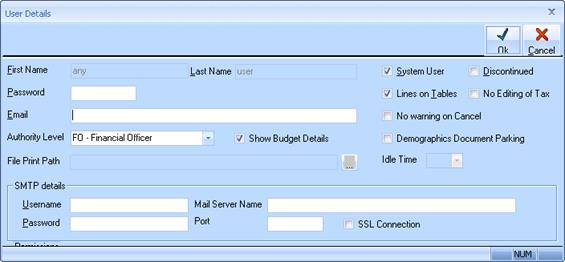
The creation of the Single Touch Payroll file will now be the last stop in the finalise batch process.
You will continue to process your payroll batches as normal checking all data, emailing etc.
When you are asked the question ‘Do you wish to finalise and answer ‘Yes’ the user will be taken straight to the create Single Touch Payroll file function.
NOTE: If you do not want to create the STP file at this point, or are not required to do so, click ‘Cancel’ and your Payrun process will now be complete
The Payroll Batch number will be assigned the actual batch number and should not be changed.
1. Enter Payer Declarer Identifier, Select the “Payer Declaration Acceptance Indicator”
2. Select “Production” or “Test”. For upload to ATO required format this must be set ‘Production’ (same as with Empdupe file).
|
NOTE |
Please refer to ATO website for additional information on the requirements for these fields. Failure to comply with the above requirements may result in rejection of the STP file upload |
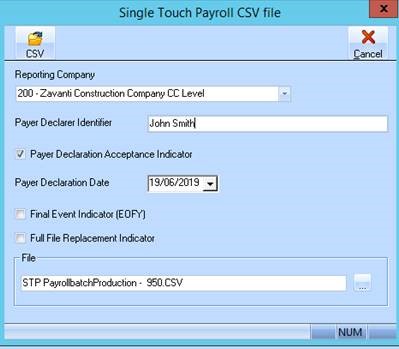
3. Use the location lookup box to nominate where to process the file
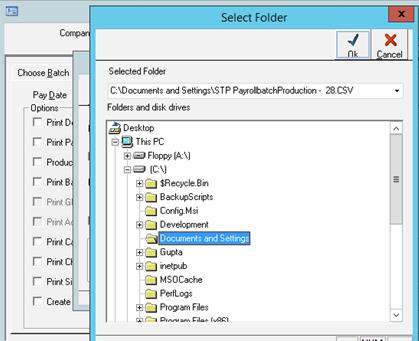
4. Select your nominated location and click on OK
5. Your selected location is now displayed in the ‘File’ box
6. Click on the CSV button in the top left hand corner to generate (create) the CSV file
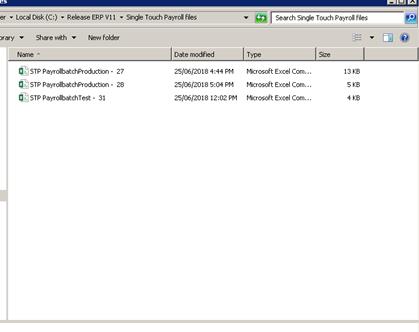
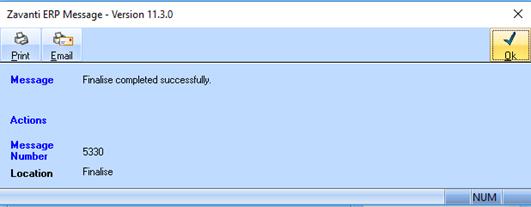
7. File has now been created message is displayed.
8. Click on Cancel [‘x’] in top left hand corner to close.
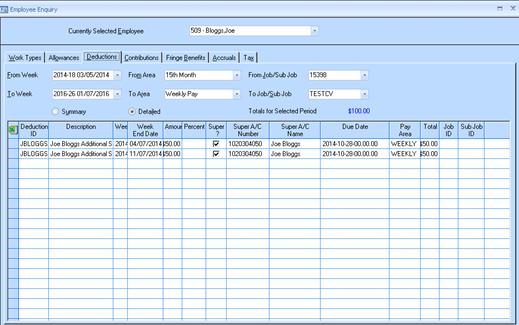
9. Batch is now finalised.
10. Navigate to your file location and files will be displayed
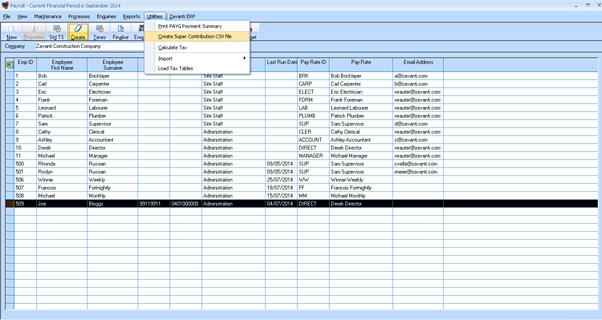
The file can now be submitted.
|
NOTE |
DO NOT open this file or the format will changed and will not be accepted by the ATO. If you want to look at the file copy it and paste to your desktop where you can open the CSV file in Excel. |