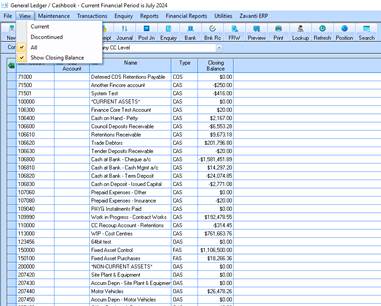
1. Go to the 'Utilities' menu of your General Ledger module and select the option 'Export Chart of Accounts'.
2. This is the screen you will have in display. Make sure the company is the one you want to export from.
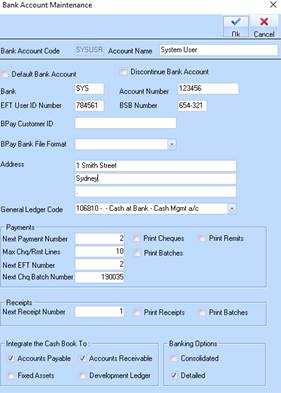
3. In the right hand box you can select where the file you create will be saved. In the left box you name the file you are creating.
4. In the bottom left hand corner, a tick box allows you to select individual accounts. Make sure you tick this box as shown.
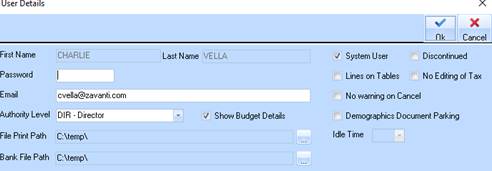
5. This screen will then pop up. You will need to go through this list and untag the accounts you do not wish to export to the new company.
6. Once you have finished this process click on ok and the screen below will be displayed.
7. Now select the new company in the general ledger main screen in order to import the chart of accounts.
8. Select 'Utilities' from the menu bar, then import the special menu and select the import option as shown.
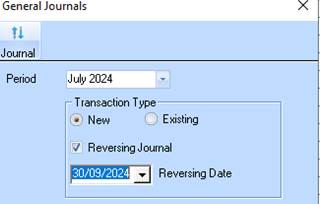
9. Click on the file button and find the file you have just saved eg export.coa
10. The file is now selected and will appear in the previous box named file.
11. Click on Ok and the system will now update your chart of accounts.