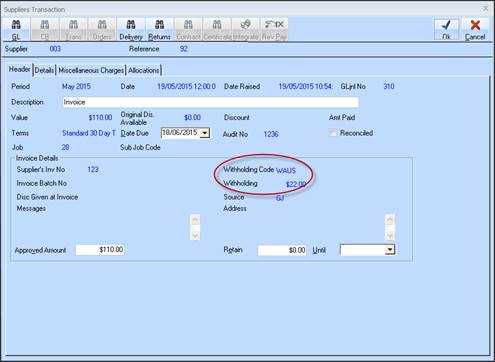
Once the Supplier has been setup, and Job related Invoice(s) created, the invoice can be paid and the correct Withholding Tax will be deducted from payment automatically.
1. From ‘Accounts Payable’ select ‘Payment’ – ‘Manual Payments’
2. Select ‘Payment’ Top L/H once’ Print and Process’ parameters are set.
3. Ensure ‘Transaction Type’ on the ‘Payment Header’ is set to ‘Accounts Payable’
4. Click ‘New’ on the Payment Header’
5. Select which Supplier’s invoices you wish to view, and optionally Pay from the Dialog list.
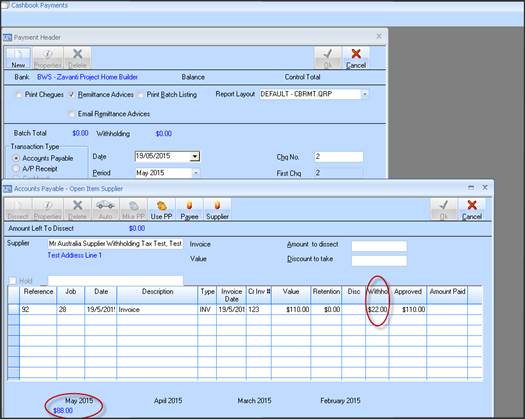
6. Open Items for that Supplier will display below the Payment Header dialog, with the Withholding Tax column showing how much will be deducted from final payment. The amount to pay (excluding Withholding) shows on the monthly breakdown at the bottom of the screen.
7. This is the amount that must be entered into ‘Amount’ on the Payment Header to clear this invoice.
8. Close the ‘Open Items Supplier’ screen – it will be displayed again once a ‘Value’ has been entered on the Header.
9. Enter the ‘Amount’ to be paid on the Header and again select
10. Click ‘New’ on the ‘Payment Header’
11. Select which Supplier’s invoices you wish to pay from the dialog list.
12. Open Items for that Supplier will display below the Payment Header dialog, with the Withholding Tax column showing how much will be deducted from final payment.
13. Select the row to be paid and the amount to pay (excluding Withholding) now shows as an ‘Amount to Dissect’.
14. Click ‘Dissect’ or ‘Auto’ to apportion the payment to each selected Invoice line.
15. Click Ok
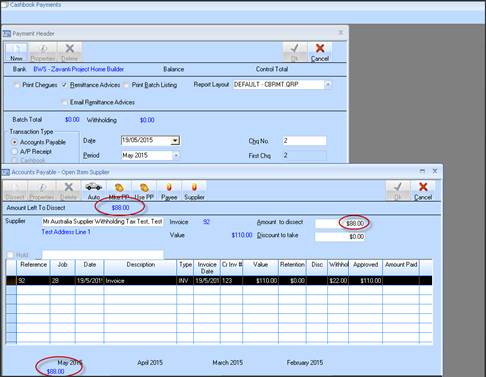
16. Once Saved , the payment transaction can be viewed, and the Withholding Tax value and Code applied shown