Module: Development Ledger
The Processing of a Sale in the Development Ledger will create the necessary transactions relating to the Project as well as create the transaction relating to the ‘debtor’ by creating a receivable invoice that will then be receipted using the ‘Settlement Receipt’ process. The Sales process also has advanced functionality in being able to handle deposits and ‘cost of sale’ transactions that are not covered in this document.
1. Select ‘SALE’ option from menu options
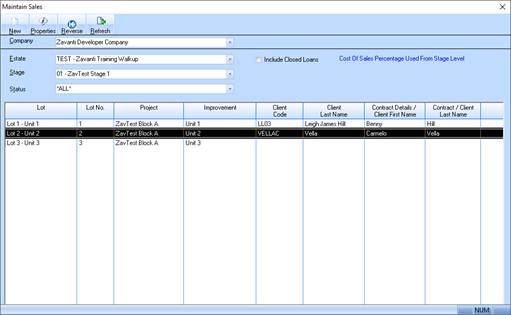
2. Select the required Estate and Stage from the ‘Maintain Sales’ window and click ‘Refresh’
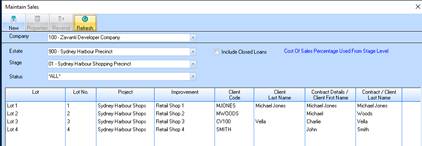
3. This will display the existing Sale records for the selected Estate/Stage.
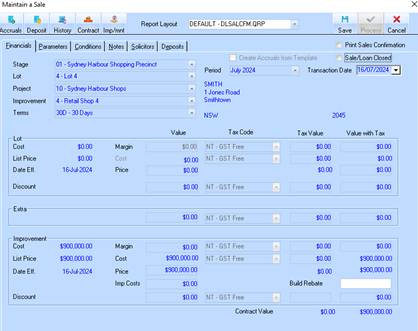
4. Select the required Lot/Improvement to Process from the list provided and click ‘Properties’. The ‘Maintain Sales’ window will be presented to the user showing the details of the previously maintained Sale information.
5. Select the ‘Period’ and ‘Transaction Date’. This is the date that Project level and financial level transactions are to be written. i.e. the Sale date.
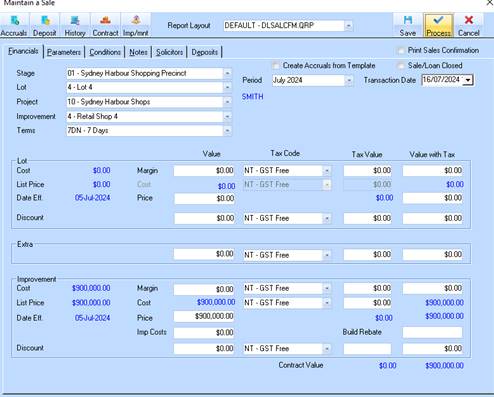
6. When you are satisfied that all information that has been recorded and agrees with the Contract Value on the Lot/Improvement then click "Process"
7. The following window will appear that enables the user to enter the “client specific’ settings required to create the new Client in the Accounts Receivable module and generate the Receivables invoice transaction for the Sale.
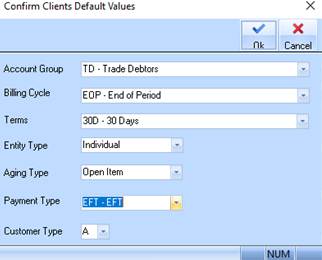
8. The above settings are automatically set according to the Accounts receivable default settings maintenance. The user must enter the missing details before clicking ‘ok’ to complete the Sale process
•Entity type
•Payment type
9. Click ‘Ok’ in order to complete the Sale process. The following message will appear and prompt the user to enter the ‘audit’ data
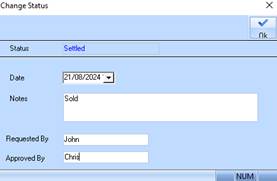
10. This is to keep a record of the Sale process for audit purposes
11. The Sale is now complete and the screen returns to the ‘Maintain Sales’ window.
12. When you go back to the properties of a Sale you will notice that all fields are disabled and you are not able to modify any of the values of the sale
13. If you have processed a sale in error, you will need to use the ‘Reverse’ sale option available from the ‘Maintain Sales’ window by selecting the required Lot/Improvement and clicking the ‘Reverse’ option
14. The “Reverse Sale Entry’ window will appear that shows all the details of the transaction that were processed as a result of the sale that are now to be reversed. If the Lot is to be made available for sale again once reverse, then the user should check the ‘Make Lot Available and Reverse Sale’ box
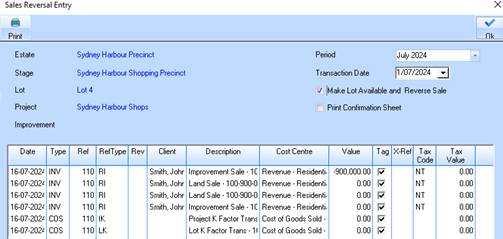
Click ‘OK’ to complete the ‘Reverse the Sale’ process. All transactions will be reversed, as well as a ‘negative’ client invoice being created for the Contract price. The lot will then be available again to process a sale.