1. All ‘EFT’ Batches will be grouped together on the Bank Reconciliation / bank Enquiry window
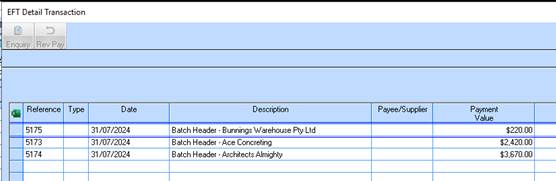
2. For example, if these 3 Payments were all part of the same EFT Batch run
3. They will be grouped together and “totalled” as 1 line only on the Bank reconciliation and enquiry window (see below), with the Description set to the ‘Batch description’ maintained on the check run batch and shown as follows
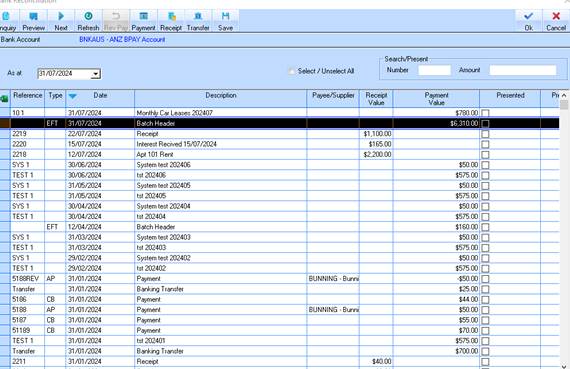
4. The Payment “Type” column, will also be set to ‘EFT’ so that users can differentiate and EFT payment batch in order to PRESENT/UNPRESENT the entire batch or to drill down to the detail lines. When the user selects an “EFT” transaction (sample above) in the Bank Reconciliation or Enquiry window, they will be able to click ‘Enquiry’ button, or double click in order to view all the individual EFT payments in the selected batch on a new window.
5. The user will NOT be able to ‘reverse’ the entire “EFT” payment batch, but will need to do so at the ‘EFT Detail Transaction’ window.
6. EFT Detail transactions Enquiry window
7. This EFT Detail Transaction window will display the individual supplier payments for the selected batch.
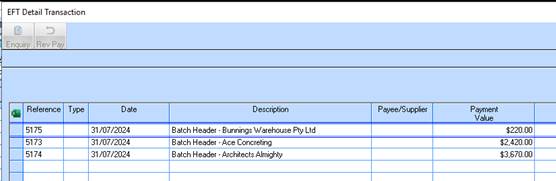
8. The ‘REVERSE PAYMENT’ button will be available for the user so they can “Reverse Payment” for an individual transaction at this level. This will create a Reverse Payment in exactly the same fashion as currently exists.
9. “Enquiry” button still available as this will call the existing Cash Book Enquiry option.