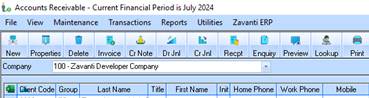
1. Process the ‘Settlement’ receipt by clicking on the ‘Receipt’ option
2. The ‘Cash Book receipts’ control window will appear
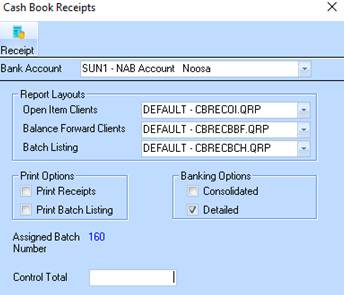
3. Select the required bank account
4. Check the required ‘Banking Option’
5. Check the ‘Print receipts’ check box if you need to supply a printed receipt for the transaction
6. Click the ‘Receipt’ option
7. The ‘Receipt header’ window will appear where the details of the deposit are to be entered
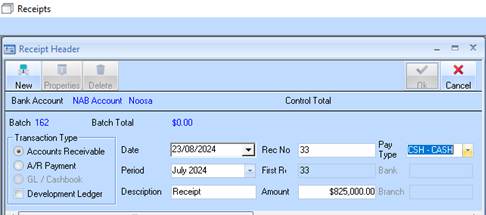
8. Tick the ‘Development Ledger’ check box
9. Enter a description for the Receipt e.g. ‘Settlement on Lot 2’
10. Enter the settlement value (as per the settlement statement)
11. Enter a receipt number (as per bank statement if provided)
12. Click ‘new’ to dissect the receipt to the required client
13. The ‘client selection’ lookup window will appear where you must select the client and click ok
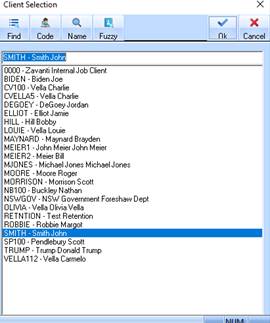
14. The outstanding invoice will appear in the following window
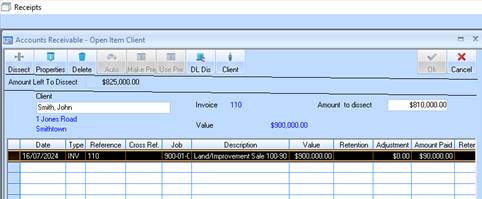
15. Select the invoice line
16. Click ‘dissect’ to allocate the Settlement amount to the outstanding invoice
17. Click ‘ok’ to receipt the amount
18. The ‘dissect’ will allocate the amount remaining value on the invoice line
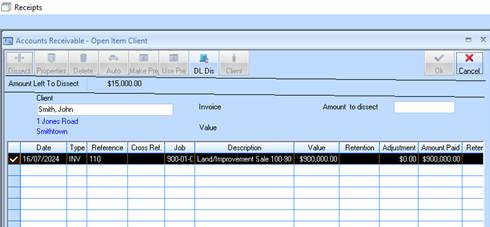
19. Thus leaving the ‘Amount left to dissect’, being any adjustments, as per the settlement statement.
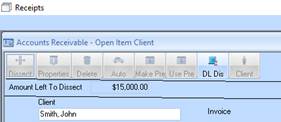
20. Click on the ‘DL Dis’ button to now enter the Settlement Adjustments
21. The DL Adjustments window will appear
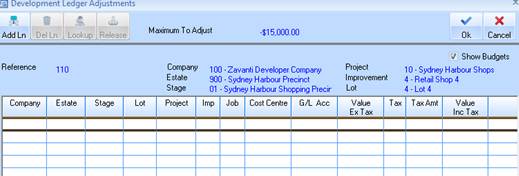
22. Click add line to insert the adjustment rows. The Company, Estate, Stage, Project and Job will automatically populate based on the invoice selected to dissect against. These entries will create project level transactions. The user can select any other Company, Estate, Stage, Project to dissect to if required, if the costs are to be allocated to another project
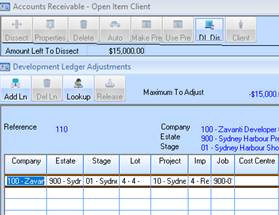
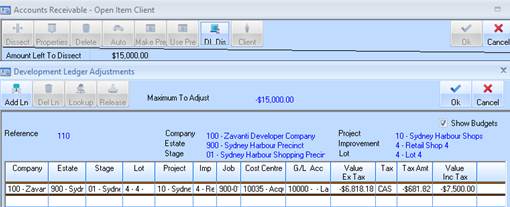
23. Select/enter the ‘cost centre’ for the adjustment transaction
24. Select/enter the ‘Tax Code’ and ensure it agrees to the transaction (ex or inc TAX)
25. TAB across to the ‘Value Inc Tax’ column and enter the ‘dissection’ adjustment amount as per the “Settlement Statement”
|
NOTE |
If the adjustment is ‘additional payment’ by the Purchaser, then this is entered as a NEGATIVE value |
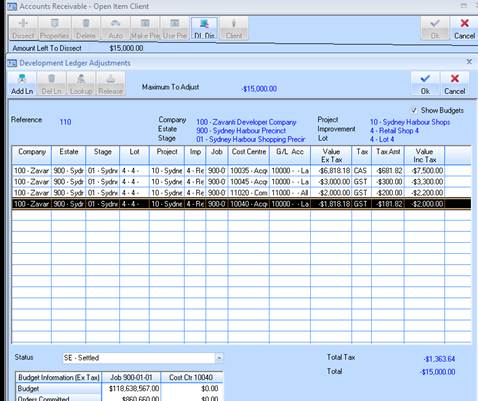
26. Repeat steps 19 – 22 for each line per the “Settlement Statement”
27. Once complete ensure that the ‘total’ and ‘total tax’ at the bottom of the screen agree with “Settlement Statement” adjustments.
|
NOTE |
The “Maximum to Adjust” value should agree with the calculated “Total” at the bottom of the screen, if the settlement is fully reconciled. i.e. there are no outstanding amounts against the contract invoice |
28. Click ‘OK’ to save the Development Ledger Adjustments dissection.
29. The Invoice will once again be displayed showing the ‘Adjustment total’ in the ‘Adjustment’ column
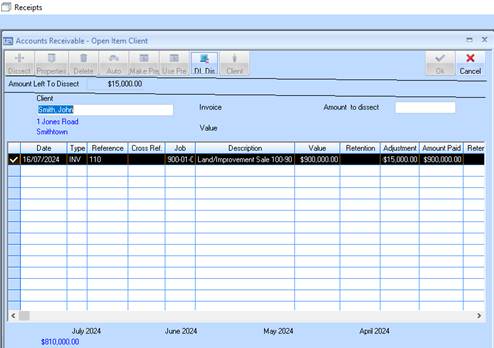
30. Click the ‘Dissect’ button to adjust the Amount paid on the invoice by the ‘Adjustment value (Discount). i.e. The total of the invoice is now reconciled i.e Value LESS Adjustment = AMOUNT Paid
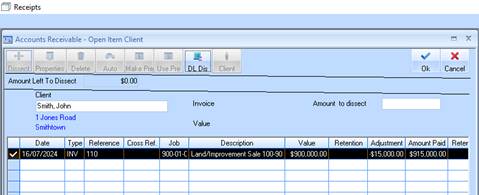
31. Click ‘ok’ to complete the receipt
32. The receipt will appear in the ‘Unprocessed receipts’ as shown

33. Click ‘ok’ to process the receipt
34. The ‘Banking’ window will now appear in order to post the Receipt to the Cash book.
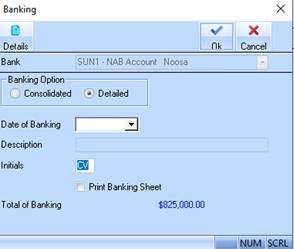
35. Click OK to confirm.
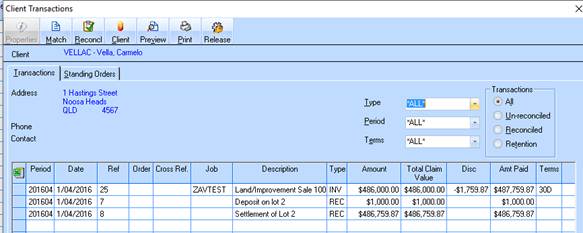
36. The above settlement receipt that has been allocated to the client’s invoice will now leave the client’s invoice as fully reconciled i.e. client balance should now be ZERO
37. The client transactions now shows the invoice and receipt transactions as reconciled.