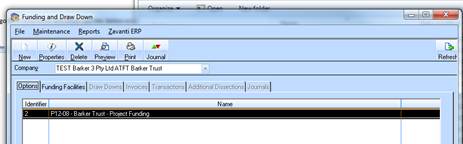
1. Select the entity
2. Highlight the Project under the options tab and the funding facility tab will become available to view.
3. Click on Funding facility tab, highlight the GST facility you want to create the draw down from and go to the Draw Down Tab and click new.
4. Enter in Draw Down Code – next draw down number eg. 9
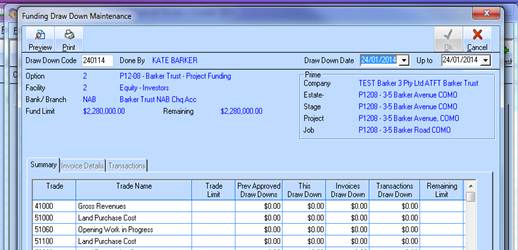
5. Highlight the trade/trades you need to record the GST on the invoices paid in step 2.
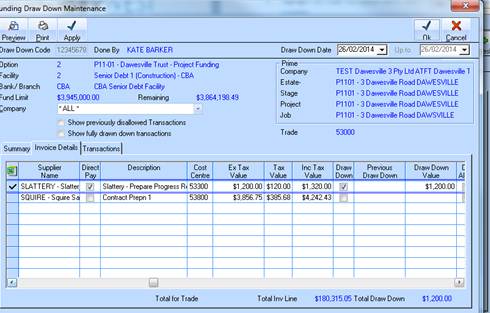
6. Go to the invoice details tab and the following options are available:
•DIRECT PAY - This marks the creditor as paid.
•DRAW DOWN – This reduces the facility – Credits the GL Account
•DIS ALLOW - Ignores transactions to not be included in draw down
7. Pick the same OPTION as step 2.
8. Type in the GST amount under the column that says draw down value as per below:
9. Go back to the summary screen and the invoices draw down column should equal the GST that relates to the invoices paid in step 2.
10. Click OK
11. New Draw Down should now pop up under the Draw Down Tab.
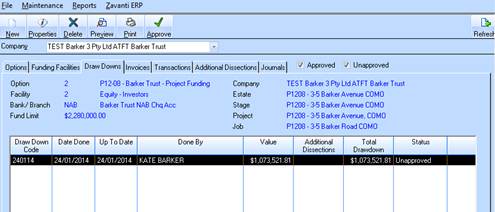
12. Draw Down needs to be approved – click on approve button.
13. Make sure the correct bank account is chosen to match facility transacting in.
14. Once approved the journals will be posted into the GL as per OPTION 1 & OPTION 2 above.