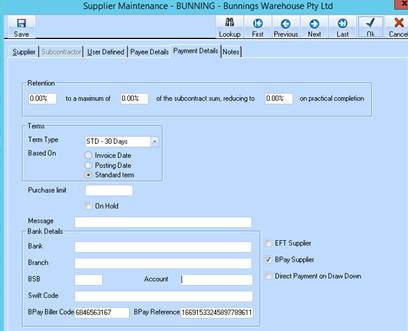
Users need to be aware if you have a supplier that has both EFT\Printed and BPay type payments they will require separate supplier records to process both types of payment.
1. Check the BPay Supplier box and enter the BPay Biller Code and the BPay Reference.
2. Click on OK to complete.
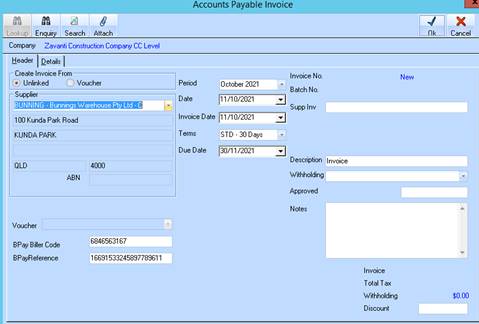
Note: When doing an Accounts Payable, Job Costing or Development Ledger AP Invoice or Vouchers the default Biller Code and Reference can be overwritten if shown differently on the invoice. This data will be written to the invoice detail for this invoice only it will not update the Supplier record.
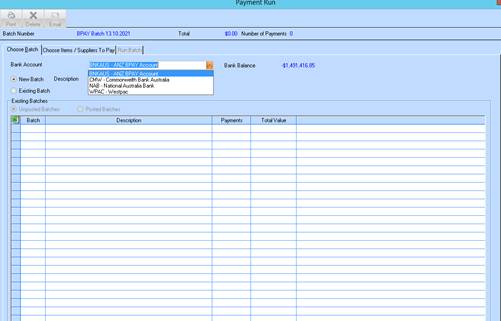
3. When creating a new payment run batch ensure the correct Bank account has been selected as the BPay file formats generated from this process is specific to each bank. This is particularly important if you are choosing an existing batch you must select the correct bank account for the batch you are processing.
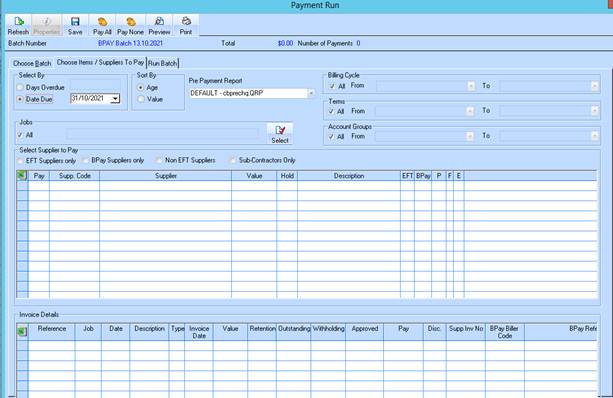
4. An additional checkbox has been added BPay Suppliers only
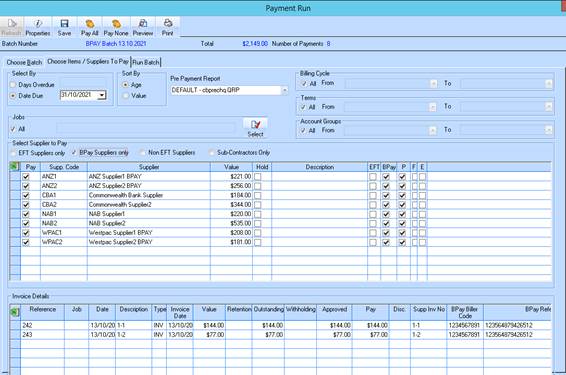
5. All BPay Suppliers due for payment will be displayed. Select as normal the suppliers/invoices that are to be paid in this batch.
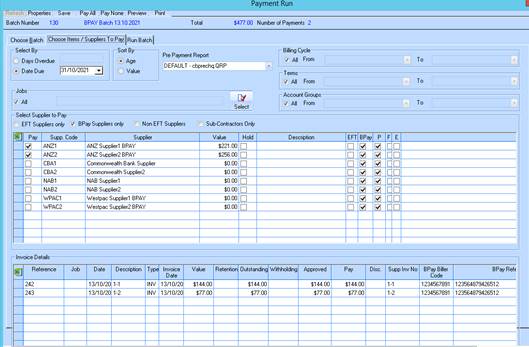
6. Note the BPay Biller Code and BPay Reference are displayed per invoice.
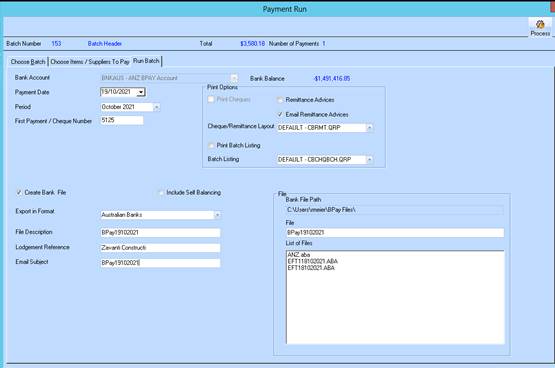
7. On the Run Batch tab the Create Bank File checkbox will be ticked. The displayed Bank File Path is where the file will be located when payment run is completed. Please note that only existing ABA files are displayed in the List of Files. BPay files are not displayed.
8. Enter a File Description, Email Subject if required and File Name. Click on Process.
9. Click on OK to complete
10. The ‘Include Self Balancing’ option is only applicable for ABA files
NOTE: You will NOT be able to re-create Bpay (or ABA) files once you have completed your payment run.