
Your Zavanti build now has (3) excel based Financial Reports templates for your use:
1. RWBS_EXCELZAV.QRP
2. RWPNL_EXCELZAV.QRP
3. RWTB_EXCELZAV.QRP
These reports have been set up in format that allows you to then convert your Financial Report Writer type reports to excel.
The following example guides you through this process. This example is for your Balance Sheet RWBS_EXCELZAV.QRP). Use same process for P&L and Trial Balance reports.
1. Save the templates to the L: drive
2. When running the required financial report e.g. Balance sheet, select the Excel version template
3. Click OK, and you can then SAVE this template for future
4. Click RUN to process the report
5. Click print to 'File'
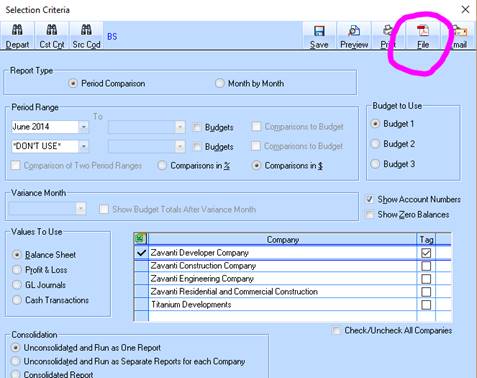
6. Select 'Save as type' Rich Text Files
7. Save the file with the file name extension .TXT
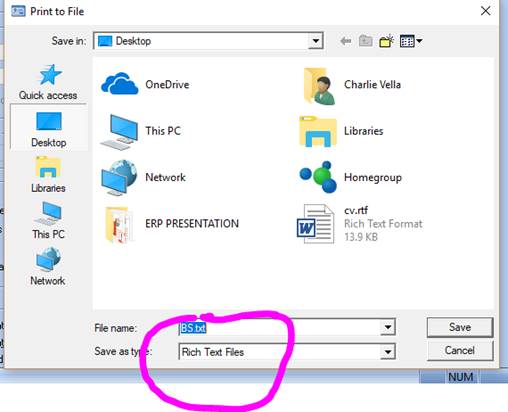
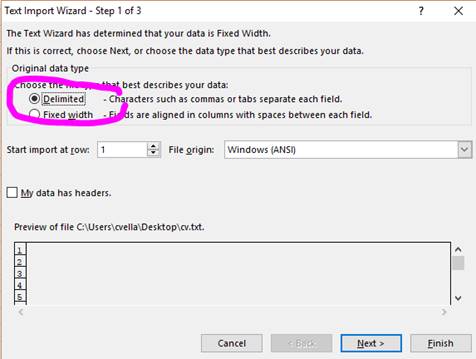
8. Run Excel, and open the SAVED file above
9. Select DELIMITED, and click NEXT
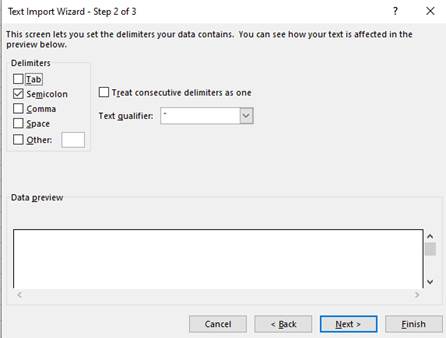
10. Select 'SEMICOLON' and click NEXT, then click FINISH
11. Result will be an excel formatted report
|
Note |
If you require changes to the data format that has been output, you will need to contact Zavanti support to provide you with new/ modified version of this template. |