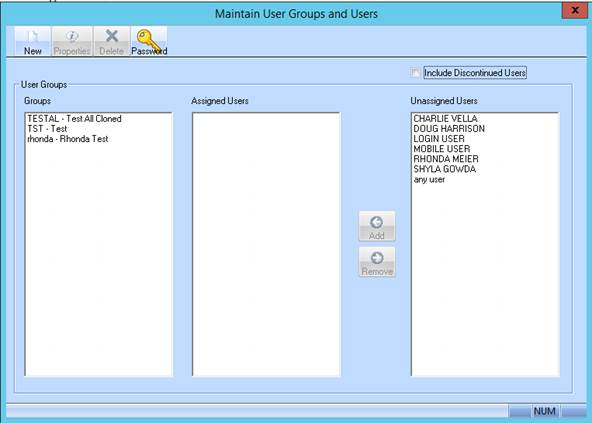
1. A new data button ‘Password’ has been added to the main form window
2. When clicking the ‘Password’ button, the user is presented with the following ‘Password Expiry Control’ window
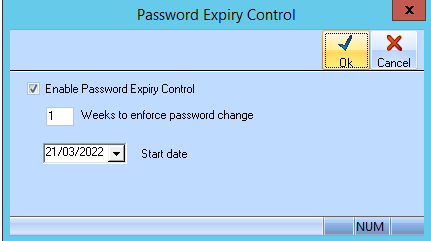
There are 3 options on this window as shown
1. Enable password expiry

This option will enable or disable the Password Expiry Control, and password enhancement feature.
When checked, it will be used in conjunction with the other fields to prompt the user to change their Password every x weeks after the ‘Start date’
This option also enforces that the users Password must be 8 characters, including 1 uppercase, 1 number, and 1 symbol
2. Set weeks allowed before change

This is the ‘frequency’ number of weeks from the Start date that the user needs to change their Password.
Example: ‘1’ weeks, means that user must change password every week.
3. Start date for weeks to expiry

The date that the Password checking is to commence.
|
NOTE |
Attention should be given to ensure that all users are aware of the new password requirements to ensure that when prompted, they will create a Password to meet the requirements as specified. Password must be at least 8 characters, including 1 uppercase, 1 number, and 1 symbol Example: Pizza123# |