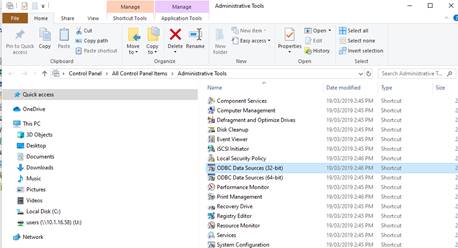
1. Navigate to the windows Control panel (from windows menu)
2. Double Click on the ODBC Data Sources (32-bit) as shown
|
Note |
Windows versions prior to windows 10 will only show ‘ODBC Data Sources’. Use this option |
3. Select the ‘SQLBase’ data source and double click
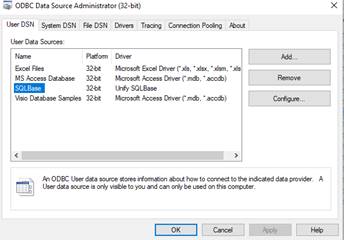
4. The following screen will appear. There is no need to enter a user name or password, or change any of the details shown here unless advised by your Zavanti support consultant

5. Click the ‘Test Connect’ button. You should receive the following message. Once again, do not change any of the details shown, and click OK
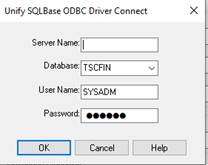
6. If successful, the following message will appear and you are now ready to user
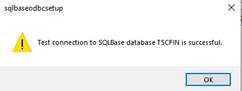
7. Please contact Zavanti Support if your test connection fails