Prerequisites:
•Have accessible Microsoft Dynamics 365 instance.
•Have access to Azure environment with sufficient privileges to create Azure Function
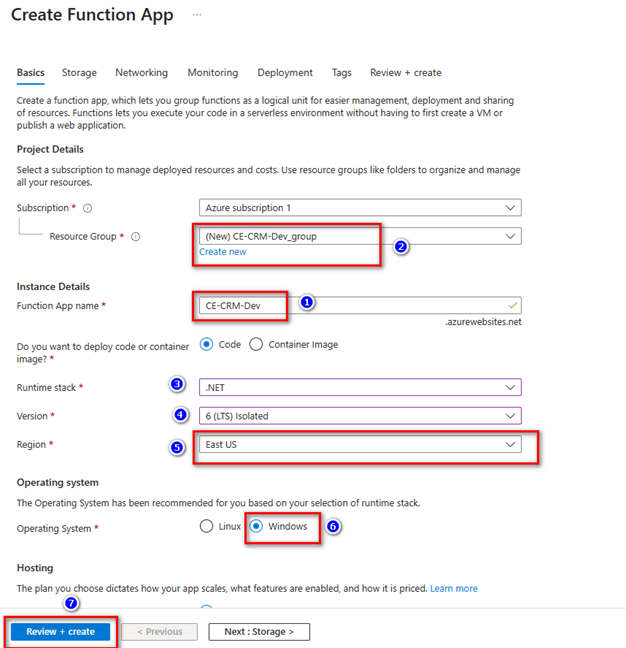
1. Step 1: Create Function App
•Resource Group -> Please select existing or create new. If not, please enter Function App name (1) -> then the Resource Group will be auto populated.
•Region -> Please select the appropriate region.
•Please click button "Review + create"
•You don't need to enter information in other tabs (storage, networking...) leave as default.
Relevant Microsoft Reference –
https://learn.microsoft.com/en-au/azure/azure-functions/functions-scale?WT.mc_id=Portal-WebsitesExtension
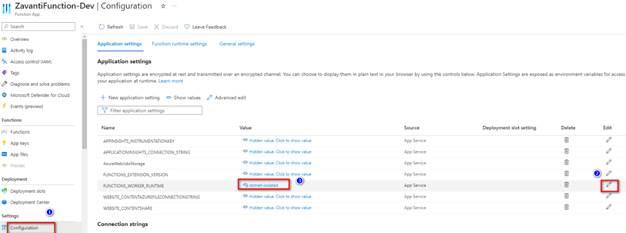
2. Step 2: Configuration of Azure Function after creation process.
•On the left side of Function App menu, navigate to Settings à Configuration.
•Under Application Settings, locate the Functions Worker_RunTime.
•Click Edit.
•Set the FUNCTIONS_WORKER_RUNTIME: dotnet-isolated
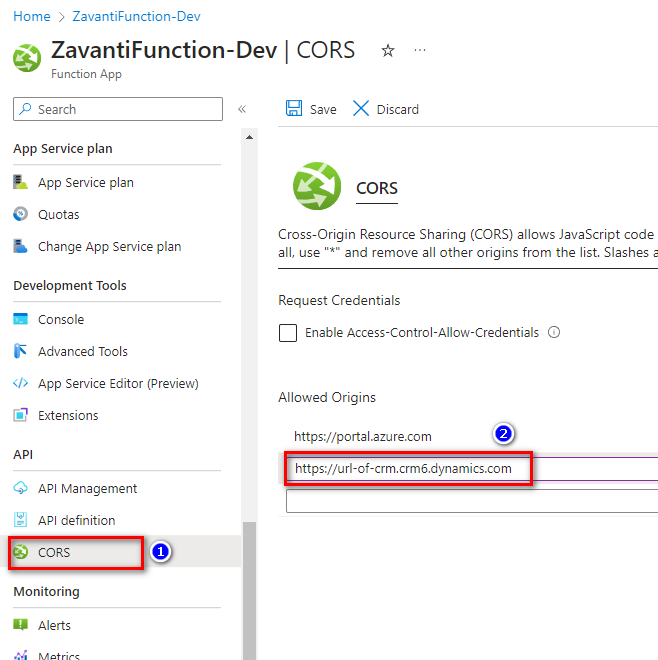
3. Step 3: Add Dynamics CRM URL to CORS
•Navigate to API section under the function App.
•Select CORS settings.
•Specify Full CRM URL to be part of the Allowed Origins.
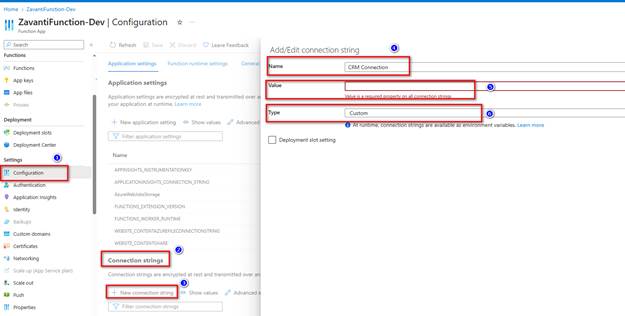
4. Step 4: Create CRM Connection String
•Navigate to Configurations under the Settings menu as indicated at screenshots below.
•Locate the Connection String section on the page
•Select “+ New Connection String”
•Specify a new Connection name
•Provide a Connection Value. Please request connection value from Zavanti.
•The connection string value might look something like the following
•AuthType=ClientSecret;url=https://xxxx.crm6.dynamics.com;ClientId=xxxxxxxxxxxxxxxxxxx;ClientSecret=xxxxxxxxxxxxxxxxxxxxxxxx;
•Leave the Type = Custom.
5. Step 4: Get Publish Profile
•Go to the function app that was just created -> click “Get publish profile” button -> please download the profile file and send to Zavanti to deploy.
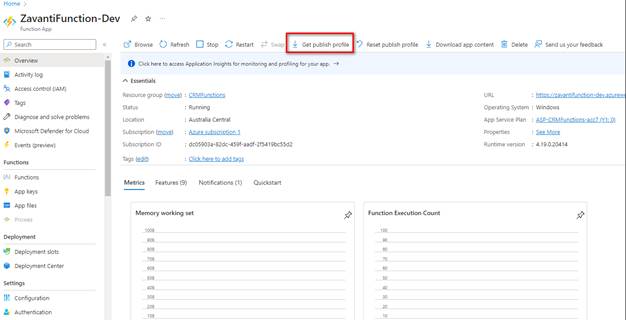
•We need this file to deploy and establish the connection between azure function and Dynamics 365. Once this is done, Zavanti will inform the client to proceed the next step below.
•Log on to the azure portal and select azure function, then select the function app created, on the right under functions click on Functions, click on the function itself.
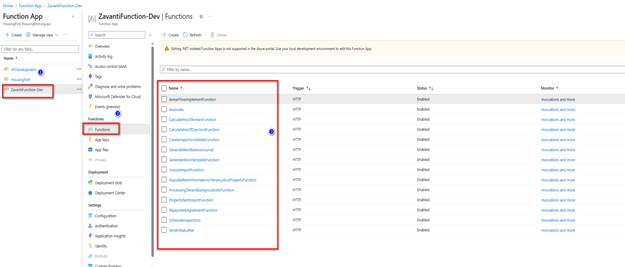
•click on “get function URL” for prod and sandbox. Please send this URL to Zavanti.
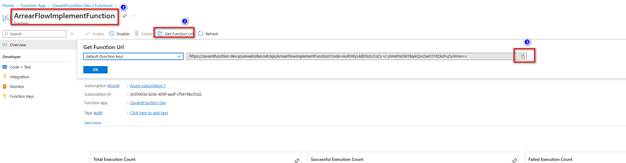
Please repeat this process of getting the function URL for all the remaining functions listed. Zavanti will deploy multiple functions as per business requirements. This could include process like adding assets to locations, payment import process etc.
Please send all the URL to Zavanti.