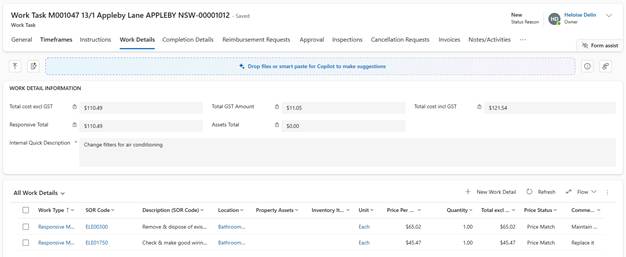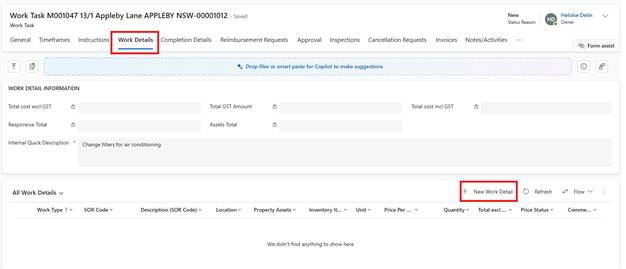
After saving the Work Task, you must add Work Detail lines:
1. Navigate to Work Details tab
2. Click + New Work Details
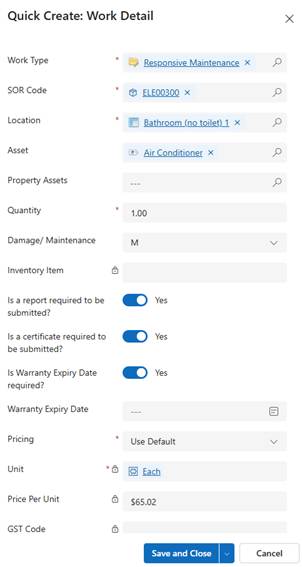
3. Select Work Type:
o Options filtered based on Work Task Priority (if configured)
o Example: Emergency priority may only show ‘Responsive Maintenance’
4. Select SOW/SOR Code:
o Dropdown shows codes appropriate for selected priority and work Type
o Search by code number or description
o Selected code populates description, unit, and price automatically
5. Property Asset (if applicable):
o If SOW code is linked to an asset Type AND that asset exists on the Property, it auto-selects
o Example: Selecting ‘Roofing Gutter Renewal’ auto-links to ‘Roofing Gutters and Down Pipes’ asset
6. Quantity
7. Price Per Unit:
o Auto-populated from contractor's price list
o If price list allows, you can override the amount
o If no price exists, field shows $0.00 and can be manually entered
8. Special Requirements: Tick if needed (or auto-ticked from SOW code settings):
o Report Required
o Certificate Required
o Warranty Required
9. Enter Comments: Specific work instructions
10. Click Save & Close
Adding Multiple Work Details:
•Click + New Work Detail again to add additional items
•Different work Types can be combined in one Work Task
•Total cost calculates automatically