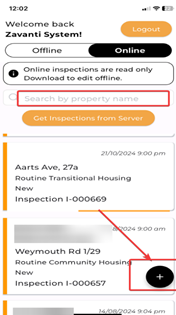
When you are in Online mode, the ‘+’ button will appear at the bottom of the screen. This button is only available in Online mode. Although users can manually create Inspections within the app, most organisations have their routine Inspections automatically generated by Zavanti Housing, meaning users typically only need to review and download them.
Steps to Create a New Inspection:
1. Tap the ‘+’ button to begin creating a new Inspection.
Note: The coloured bar on the left side of each Inspection record indicates the status of the Inspection:
•Green – Completed
•Purple – Work Task partially created
•Orange – New Inspection
2. In the ‘Select a Property’ popup, type the name of the Property you wish to inspect.
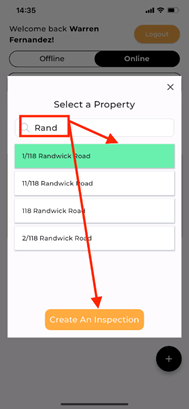
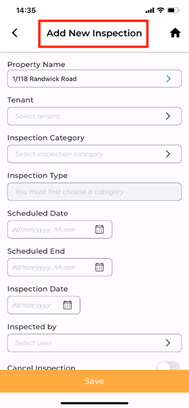
3. Select the correct Property and tap ‘Create an Inspection’. The Add New Inspection form will appear. Enter all required information.
4. If the Inspection already exists in Zavanti Housing, simply tap ‘Get Inspections from Server’ to retrieve it. In this case, there is no need to create it again in the app.
Important notes about creating an Inspection:
•Inspected By: Ensure that the ‘Inspected By’ field is set to the correct user account you are logged into.
•Sorting Order: Inspections are sorted by Schedule Date (Inspection Start Date), with the most recent Inspections displayed first.
•Online mode Requirement: New Inspections can only be created while in Online mode. If you expect to work in an area with poor or no connectivity, you should create the Inspection before travelling to the Location—either in Zavanti Housing or directly in the app. Many organisations have routine Inspections set to be automatically generated once the previous Inspection is closed.