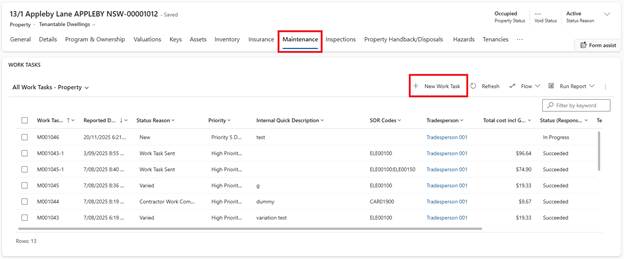
1. Navigate to Work Tasks (or from Property, select Maintenance tab)
2. Select New Work Task
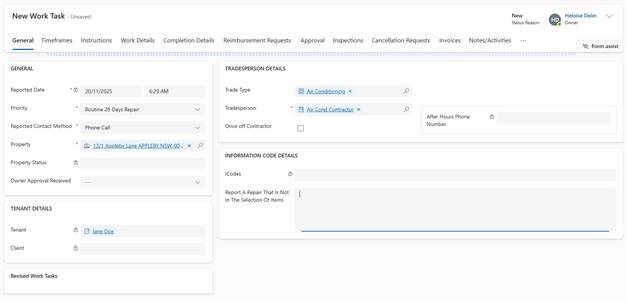
3. Enter or review the following fields:
a. Reported Date/Time (Auto-populated with current date/time)
b. Priority (e.g., Emergency 4 Hours, Urgent, 14 Day Repair, 21 Day Repair)
c. Reported Contact Method (e.g., Phone, Email, Portal, Walk-in)
d. Property:
i. System automatically filters available contractors based on Property's LGA
ii. Hazards/risks display if Property has alerts
iii. Tenant details auto-populate if Property is occupied
e. Trade Type
f. Tradesperson:
i. Dropdown shows only contractors with active price lists for the Property's LGA
ii. Filter by Trade Type (Plumbing, Electrical, etc.) to narrow options
iii. System checks for nominated trades on the Property and displays them first
g. Enter Internal Quick Description: Describe the Maintenance issue
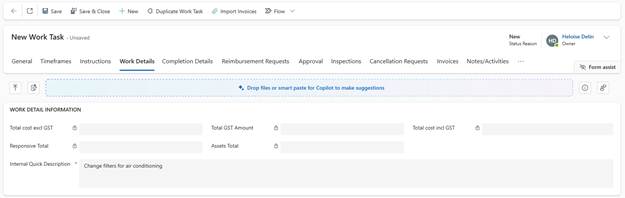
h. Click Save
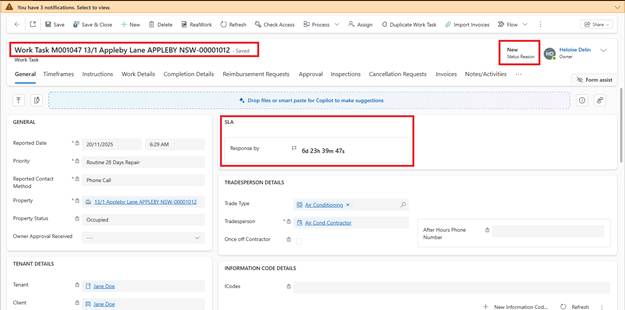
When saved:
•Work Task ID generates (format: M followed by unique number)
•Status: New
•Response By SLA activates (default: 24 hours for most priorities)
•Property address displays prominently
•Tenant information and Property alerts appear in Instructions tab