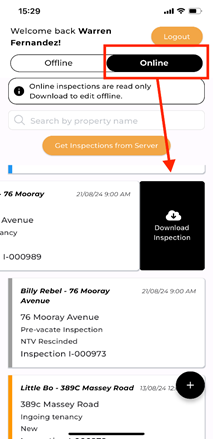
Before beginning an Inspection, ensure that you have downloaded the Inspection and that you are working in the Offline mode. Downloaded Inspections will appear in this mode and are available for editing even without internet connectivity.
To download an Inspection:
1. Go to the Online tab.
2. Select the Inspection you need.
3. Swipe left and tap ‘Download Inspection’.
4. Once the download is complete, a green cloud icon with a tick will appear on the Inspection card within the Offline mode.
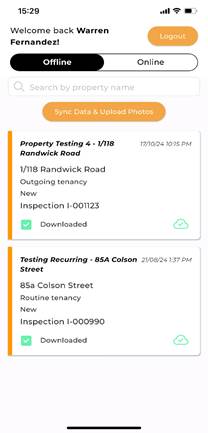
If you have multiple Inspections to complete, download each one individually, and wait for the green cloud icon to confirm completion before downloading the next.