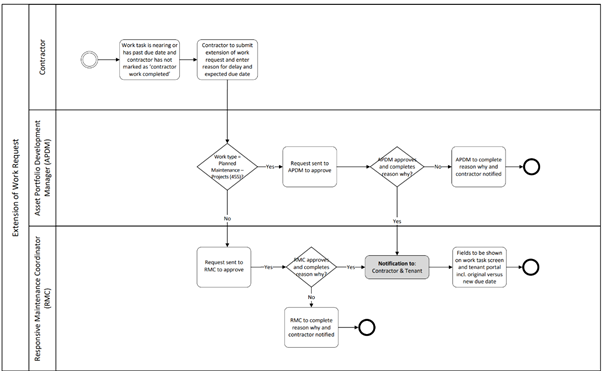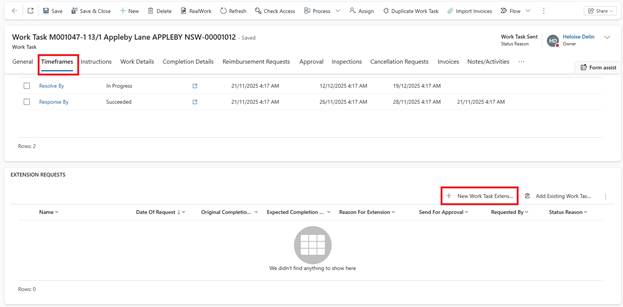
1. Open Work Task (Status: Work Task Sent)
2. Go to Timeframes tab
3. Navigate to Extension Requests section
4. Click + New Extension Request
4. In the Extension Request, Original Due Date/Time: Displays current Resolve By date
5. Requested Extension Date/Time: Enter new proposed completion date
6. Reason For Extension: Enter the reason
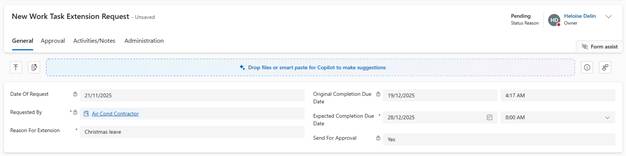
7. Click Save
Approval Process:
•Routes to Property Coordinator or Assets Officer (based on configuration)
•Approver receives task notification
•Reviews Extension Request
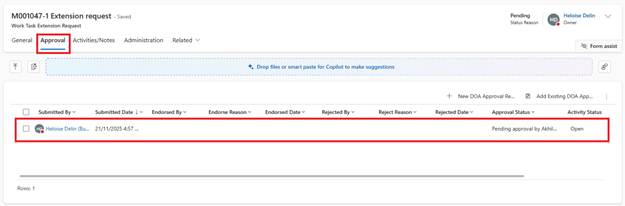
•Approves or rejects
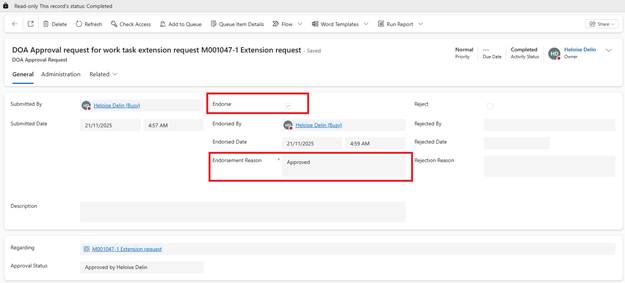
If Approved:
•Resolve By SLA failure time updates to new date
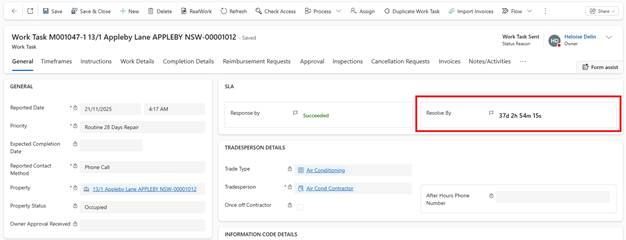
•Email sent to contractor confirming extension
•Work Task remains In Progress
•Timeframes tab reflects extended deadline
Reporting Considerations:
•Extended Work Tasks can be filtered in reports
•Shows how many extensions per contractor
•Identifies patterns of delays
•SLA compliance calculated based on final extended deadline
Important: If Work Task has already failed SLA before extension Requested, further testing required to confirm whether extension can still be applied.