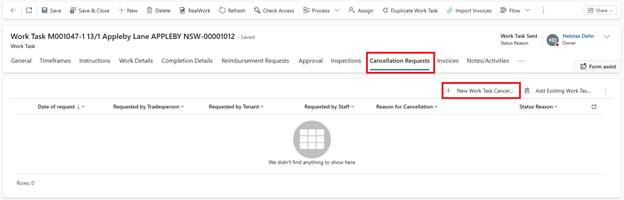
1. Open Work Task
2. Navigate to Cancellation Requests
3. Click New Cancellation Request
4. Complete Cancellation form:
o Cancellation Reason: Select from dropdown (e.g., ‘Component found in good condition’, ‘No access’, ‘Work no longer required’)
o Contact Method: Phone, Email, Contractor Portal
o Requested By: Tradesperson, Tenant, Internal
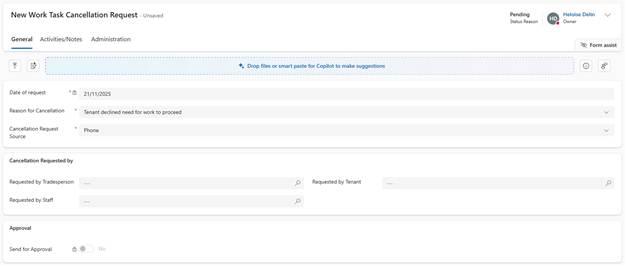
5. Click Save
6. Click Send for Approval
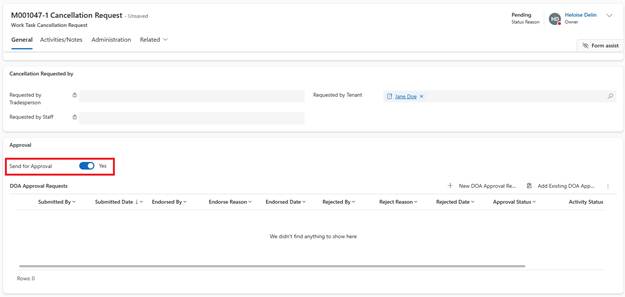
Approval Process:
•Routes to Assets Officer or Property Coordinator
•Customization Point: Approval routing can be based on Work Task value (similar to DOA)
•Approver reviews reason
•Approves or rejects
If Approved:
•Work Task status changes to Cancelled
•Work Task becomes Inactive
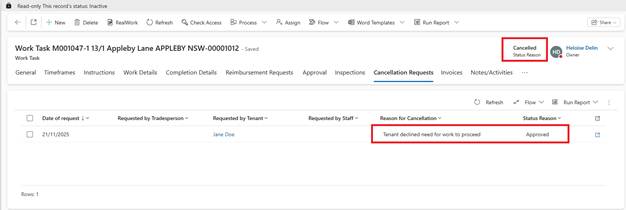
•Cancellation Reason visible in Work Task record
•Cancellation appears in Property's Notes and Activities history
•No financial transactions processed
Reporting: Cancelled Work Tasks can be filtered to identify:
•Properties with repeated no-access issues
•Contractors with high cancellation rates
•Work Task s cancelled after certain duration