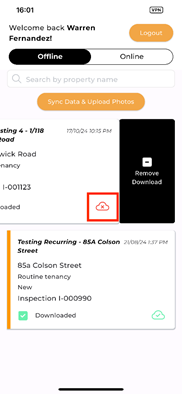
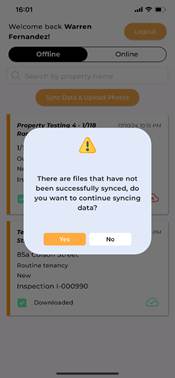
If you try to remove an Inspection that has unsynced data or photos (indicated by a red cloud icon with a cross), swiping left and selecting ‘Remove Download’ will trigger a warning message. The app will notify you that there is data and images that have not been synced to Zavanti.
You will be asked: ‘Do you want to sync before removing?’
•If you select Yes:
The app will automatically sync all data and photos
for that Inspection.
•If you select No:
A second confirmation message will appear
asking:
‘Are you sure you want to delete this Inspection?’
Choosing Delete will permanently remove all unsynced data and photos stored on the device.
When an Inspection is removed, whether synced or not, all locally stored photos and data for that Inspection are deleted from the device.