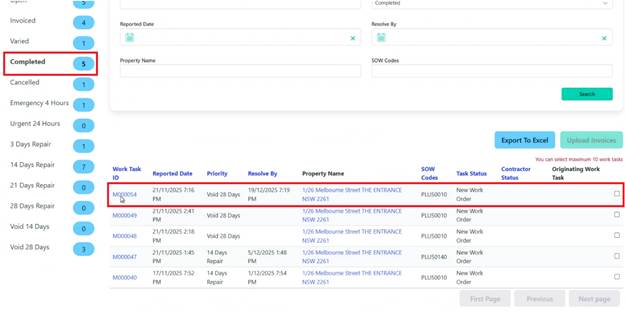
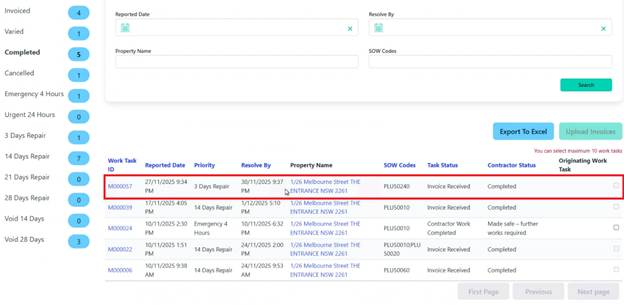
1. Navigate to ‘Completed’ Work Tasks in the left filter menu
2. Select the Work Task to be Invoiced
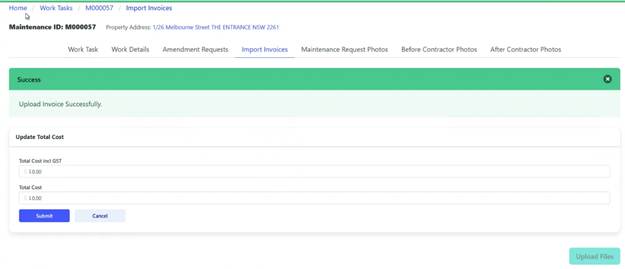
3. Select ‘Import Invoices’ tab
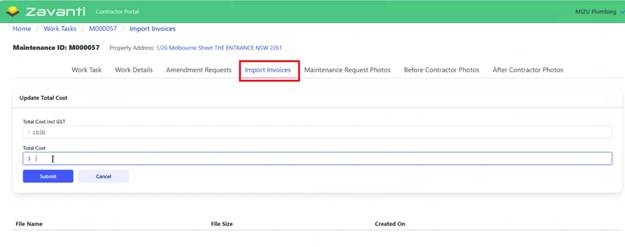
4. Review the Work Task total displayed
5. Enter Invoice total (should match Work Task amount)
6. Click to Submit
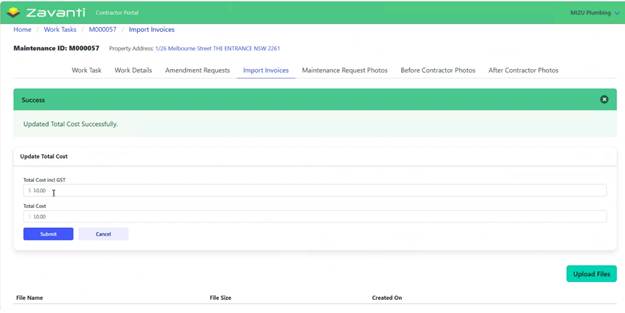
The system reminds the user that Invoice Amounts should match the Work Task total. Mismatches will create Variations.
7. To upload Invoice PDF, click ‘Upload Files’
8. Select the Invoice PDF (only PDF format accepted)
9. Upload the document
10. The system confirms successful upload
 Once submitted:
•Work Task Status changes to ‘Invoice Received’
•Invoice PDF is sent to Continua (Business Central integration)
•Invoice is stored in Zavanti's SharePoint folder
•CHP receives notification of Invoice submission