Once all Inspection details and photos are completed and you have a stable internet connection:
1. Return to the Home screen.
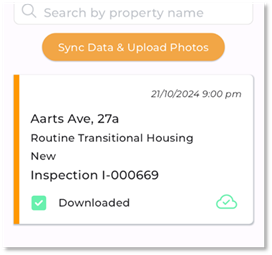
2. Tap ‘Sync Data and Upload Photos’.
3. A progress bar and a notification banner will appear.
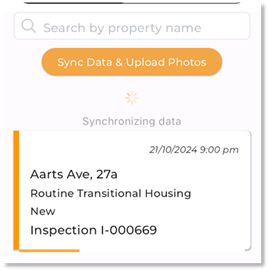
4. Keep the device active until the sync completes.
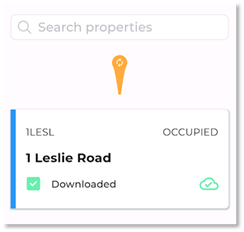
5. A green cloud icon indicates that all data and photos are synced successfully.
If more photos or updates are required:
•You can continue to make changes and sync again as long as the Inspection remains in NEW status.
If the Inspection was reactivated (Completed → NEW):
•You must also tap Sync while in Offline mode to return the Inspection to an editable state.
You can also pull down to refresh or sync data/photos in Online mode instead of using the button.