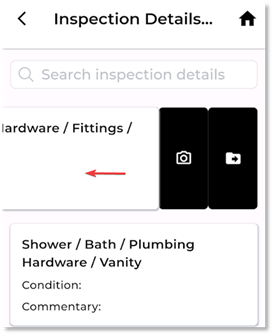
To take photos from the Inspection Details screen:
1. Swipe left slightly to open the camera panel.
2. Tap the green camera button to take new photos. The app may prompt you to grant camera access; tap Allow.
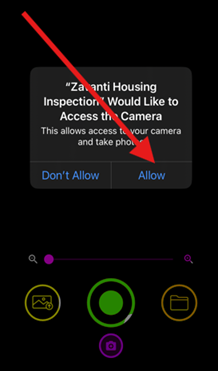
3. You can also use the yellow gallery icon to import existing photos stored on your device taken with your device’s built-in camera app.
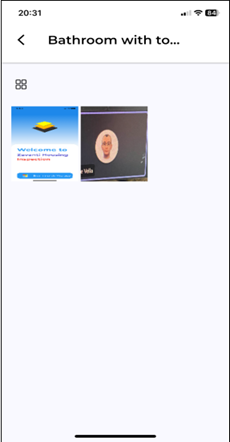
4. Photos will appear as thumbnails along the bottom of the screen.
5. Tap a thumbnail to enlarge the image and swipe between photos.
6. When finished, tap SAVE (top-right corner). This saves the photos locally for later syncing to SharePoint.
You must save the photos you take for them to be stored in the Inspection folder. You can view them in the folder as a list or as thumbnails.
Camera Icons Overview
|
Icon |
Colour/Position |
Function |
How to Use |
|
Gallery Icon |
Yellow, bottom left |
Opens device photo gallery |
Select existing photos to add to the Inspection |
|
Camera Shutter Button |
Green, bottom centre |
Takes a new photo |
Capture photos directly within the Inspection |
|
Folder/Document Icon |
Yellow, bottom right |
Opens Inspection photo folder |
View or manage photos already linked |
|
Magnifying Glass & Slider |
Purple, above camera icons |
Search/adjust camera settings |
Adjust zoom or exposure for better quality |
|
Camera Icon (+) |
Bottom centre |
Switch between front/rear camera, toggle flash |
Tap to change camera or flash settings |