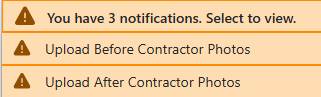
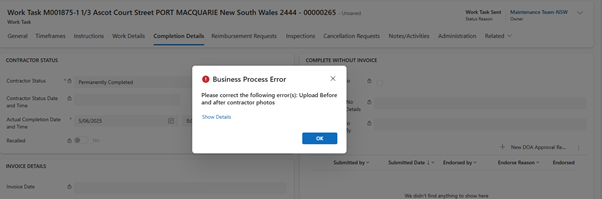
Before and After Photos are mandatory for all Work Tasks. System does not allow to mark the Work Task as completed unless the photos are uploaded in their respective folders
1. Open the Work Task
2. Navigate to Documents tab
3. System shows default folders:
o Before Contractor Photos
o After Contractor Photos
o Maintenance Request Photos
o Invoices
o Quotes
o Risk and Assessment Reports
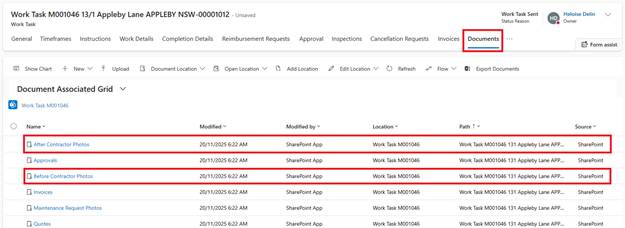
4. Click on Before Contractor Photos folder
5. Click Upload → Select image file(s)
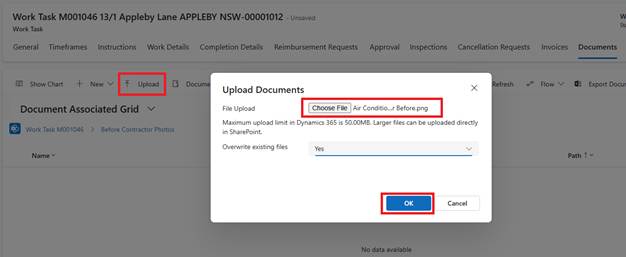
6. Repeat for After Contractor Photos folder
7. Save