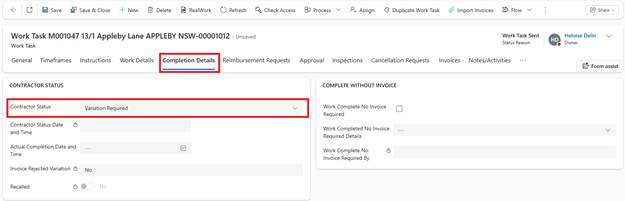
Scenario: Contractor attends site and identifies additional work or changes needed.
Process:
1. Contractor contacts office or submits variation via Contractor Portal
2. User opens Work Task
3. Navigate to Completion Details tab
4. Change Contractor Status to Variation Required
5. Click Save
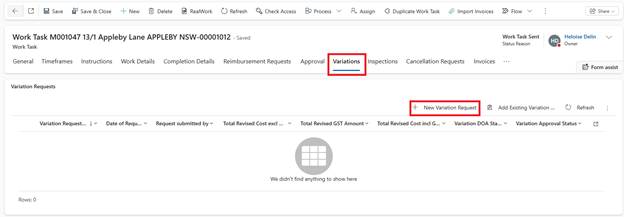
6. Navigate to Variation tab (now visible)
7. Click + New Variation Request
Complete Variation Request:
1. Reason for Variation: Select from dropdown
2. Original Work Details: Displayed for reference

3. Revise Work Details:
o Modify quantities on existing lines
o Update prices
o Add new work detail lines (+ New Work Detail)
o Remove lines if no longer required
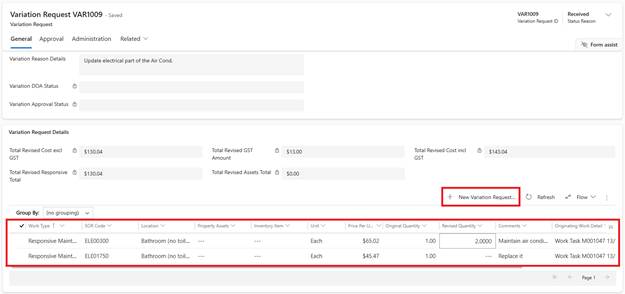
4. Revised Total: Calculates automatically
5. Click Save
6. Click Send for Approval
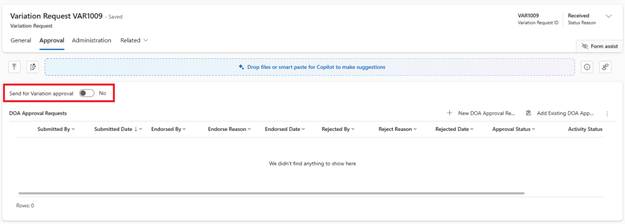
Approval Process:
•Routes based on revised total amount and DOA settings
o Select the DOA Approval Request
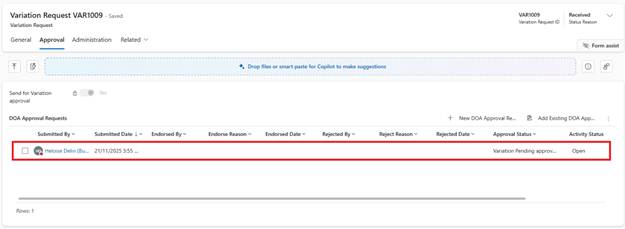
o Endorse, Fill the Endorsement Reason and Save
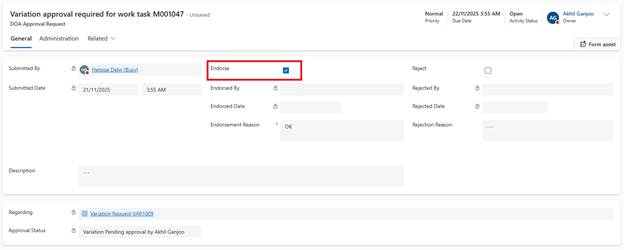
•If approved:
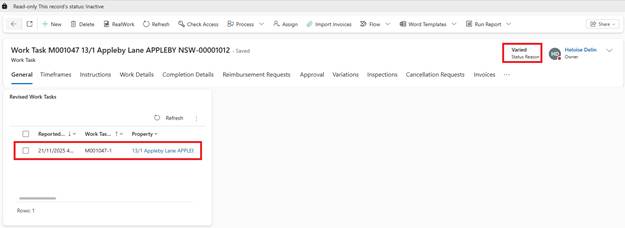
o Variation Request Status becomes Approved
o Original Work Task marked Inactive (Status: Varied)

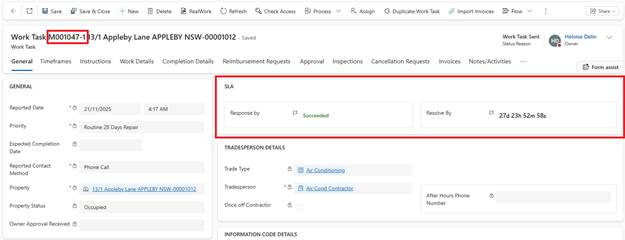
o New Work Task created with ‘-1’ suffix
o Response By SLA not applicable (copied from original)
o Resolve By SLA continues from original
o New Work Task includes revised Work Details

o Email sent to contractor with updated work details
Multiple Variations: System allows multiple variations if needed. Each creates a new Work Task version (-2, -3, etc.).
Audit Trail: Original Work Task remains viewable with ‘Originating Work Task’ link in new Variation Work Task.