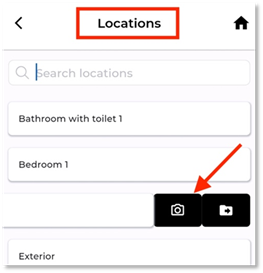
•You can search for a Location using the search bar.
•To update photos for a Location, swipe left slightly to access the camera or gallery icons. The camera icon will only appear for Inspections that are newly downloaded. Inspections marked as Completed (green bar) or Work Task Partially Created (purple bar) will not display the camera icon.
When selecting a Location:
1. The Inspection Details screen displays all associated Assets.
2. You may:
•Search for an Asset
•Tap an asset to update its condition
•Add comments
•Mark it as damaged, unclean, not working, or requiring maintenance
3. Save your comments before taking photos.