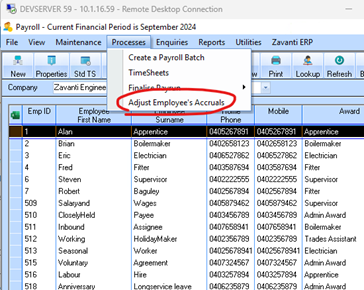
There are times when a user will need to adjust an employee’s accruals. This function is also used to set up the initial accrual balances when first using Zavanti Payroll.
1. Select menu option Processes >Adjust Employee’s Accruals.
2. To perform an adjustment, press the Add button and select the employee that you would like to adjust the accrual data for and press the OK button.
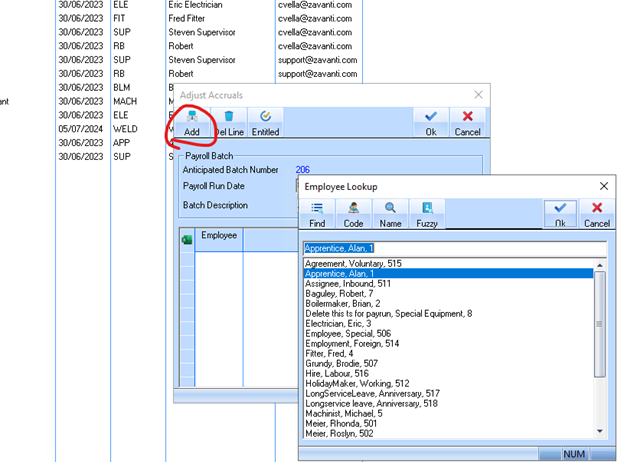
3. The system will dynamically update the window as follows showing the current entitled balances for the selected Employee
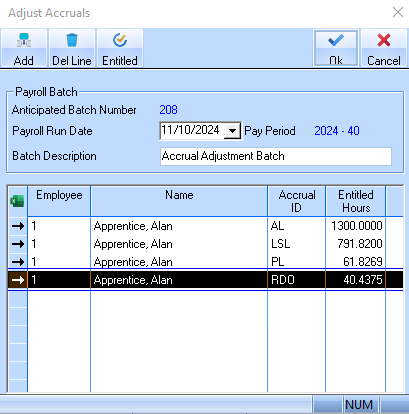
4. 4.Press the OK button if the Entitled Hours field is correct (no changes required)
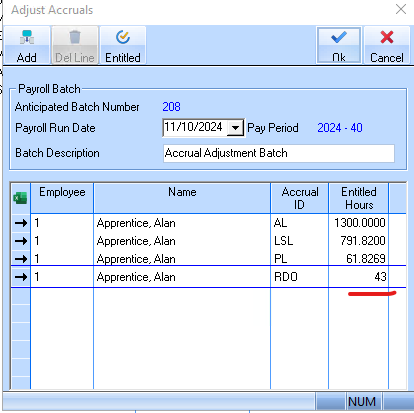
5. If the value is incorrect and you wish to adjust the entitled hours value(s), position your cursor in the Entitled Hours field and
6. manually specify the accrued hours for the Accrual Type
EXAMPLE: RDO.
7. In this example, we will change RDO Entitled Hours from 40.4375 to 43.000
8. Set the Payroll Run date to be the date of the last run for the selected employee
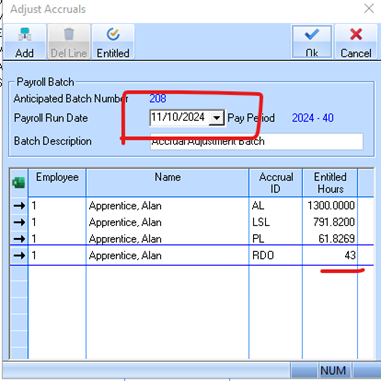
IMPORTANT The date entered here MUST be dated same as last Pay Run Date for that employee, so that the ADJUSTMENT appears as part of the LAST run.
9. Press the Entitled button to process the adjustment.
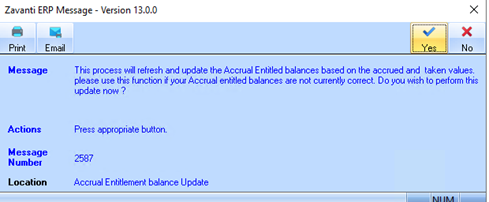
10. A message will be displayed advising you of the changes and "do you wish perform this update now?"
11. Select the confirmation YES/NO
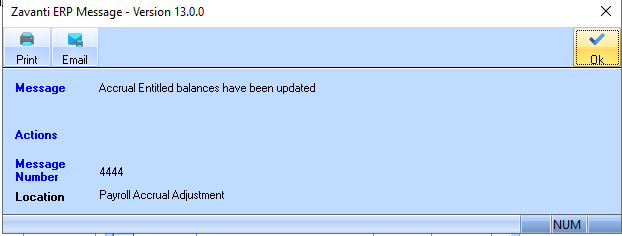
12. When completed a message will be displayed confirming the update
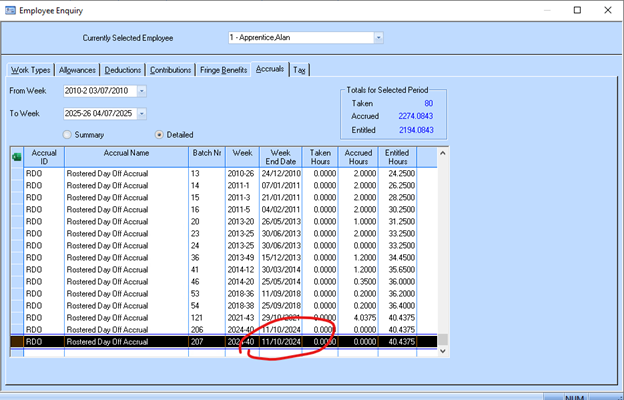
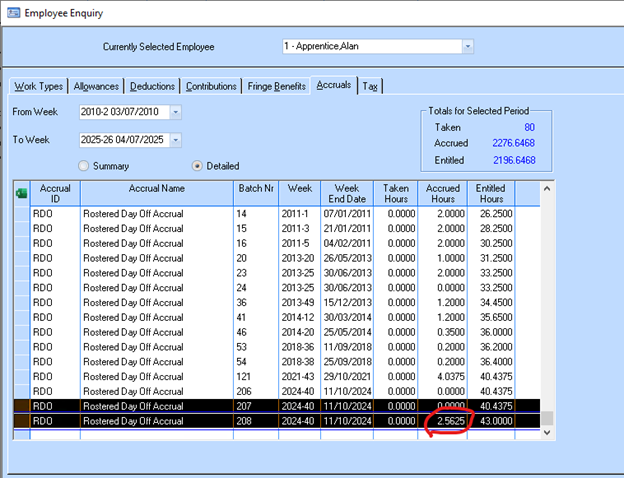
13. Review the Employee transactions 'Accruals' TAB (as shown below)
14. You will then see an 'adjustment' accrual transaction. In this example we have accrual adjustment of additional 2.5625 hrs to take the Entitled to 43.00 HRS
15. Process complete.