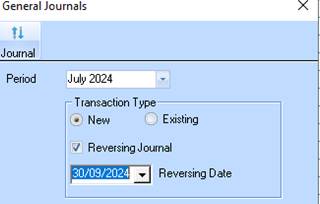
Users are able to set the system to automatically reverse journals in the General Ledger module for all new journals entered into a particular batch. After clicking on the "Journal" button in General Ledger, users will see two new options:
•"Reversing Journal" tick box - ticking this signals that reverse journals should be created as the user enters new journals
•"Reversal date" drop down box - this is the date that will be automatically entered as the journal's transaction date. Please note the date here will need to be greater than the date of the journal to be reversed – e.g. it is impossible to select a reversal date of 1st June 2014, and then try to enter a journal for 15th June 2014. The reversal date must also fall within an open or current period.
After selecting the relevant options, the user will need to press on the "Journal" button to enter the journal entry window. A message will appear to confirm the selection to reverse journals, pressing "Yes" will allow them to continue. After entering the details of a journal and pressing the "New" button to enter the journal (as per the normal process) a reversing journal will be created directly after it. The date will be set to the date selected on the initial journal window, the account and sub account the same as the first journal, and the reference will match the first journal but with "REV" before it.
After processing the journals, the user will need to post them using the standard journal posting process, unless automatic posting has been established.