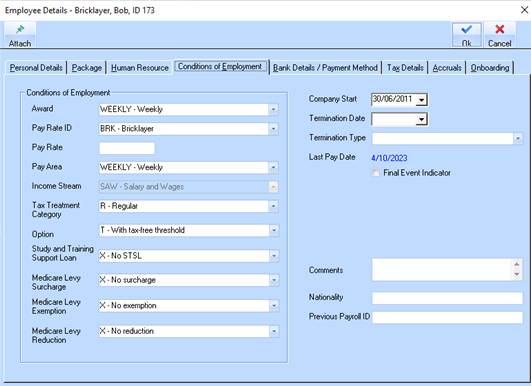
1. On the Conditions of Employment tab both ‘Start and Termination’ dates are passed to the Single Touch Payroll file. ‘Start Date’ must be provided.
2. On the Conditions tab use the drop-down menu selection for the Award, Pay Rate ID and Pay Area. All other drop-down options are required for the creation of data in the Single Touch Payroll file. These maintainable options will be explained in their own sections of this documentation. Select the Company Start date for the Employee and enter any required comments. The Termination data is applied when an employee is terminated. This is used to filter the employees displayed on the main payroll menu.
3. ‘Termination date’ and ‘Termination Type’ may be left blank until the employee is terminated. This is now able to be entered when running the employees final pay and will generate the notice to the ATO that this is the final pay from this company for this employee.
Explanation of Fields – Conditions of Employment
|
Name |
Description |
|
Award |
This pick list is used to enter an award rate of pay for the Employee. Select a value from the list by pressing the dropdown arrow and press Tab to progress to the next field. |
|
Pay Rate ID |
Specify the ID rate related to the Award. Select an item from the list and press Tab to progress to the next field. |
|
Pay Rate field |
Enter the rate of pay per hour the employee is entitled to receive. Enter a dollar value and press Tab. This field will override any Pay Rate ID during a pay run. |
|
Pay Area |
This pick list is used to assign the employee a Pay Area. This Pay Area is also used to set the parameters for the Superannuation Reporting CSV file generation, ensure that your employee is in the right Pay Period/Pay Area combination. Select a value from the list and press Tab to progress to the next field. |
|
Comments |
You can enter ad hoc information relevant to the employee. |
|
Nationality |
Enter the employee’s nationality details. |
|
Company Start |
This pick list is used to enter the date the employee started with your organisation. Select a date and press Tab to progress to the next field. |
|
Termination Date |
This field is used when an employee is leaving the Company. |