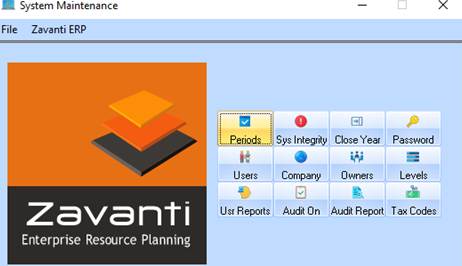
To create a new company
1. Open the System Maintenance module
2. Click on Company
3. Click on New
4. Enter a unique Company identifier code
5. Enter the relevant Company details, including Business Name
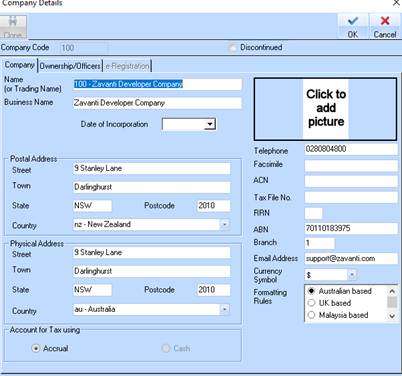
6. To put in a Company Logo, right click on the grey box in the top right hand corner and select Add/Modify picture.
7. Browse to where the logo has been saved on the network and press Open. Please note – this location will need to have the same file path for all users, so it is recommended to save the logo within the ERP folder (usually located on the L:\)
8. Click on OK to confirm and exit
The characters permitted to be entered in the company name fields include:
•0-9
•A-Z (upper and lower case)
•Brackets ( )
•Blank spaces
•Dashes –
•Ampersand &