
Cost Centres are the main link between the Development Ledger and GL and they represent your Accounts in the Development Ledger.
It would be our advice that if you took the option to have an account in your General Ledger for every account in your Development Ledger then you would make the Cost Centres in the Development Ledger the exact same code as that of your accounts in the General Ledger. That is, if you have an account 77556 in the GL of Earthworks then you would have a Cost Centre 77556 in the Development Ledger.
Cost Centres do however provide more than just the coding for capital expenditure. They also provide a certain amount of intelligence and report capabilities. To understand these capabilities you will need to look at the Cost Centres screen.
When producing financial reports in the Development Ledger the system provides these for you on a Cost Centre by Cost Centre basis. For instance, a Trading Summary would include Cost Centre figures for Month to Date, Year to Date, Life to Date and Budget Comparisons.
1. Select a menu path of Maintenance Ø Cost Centres\Cost Centres
2. The following window will be displayed:
3. To create a New Cost Centre, select the New button. The following window will be displayed:

4. The Code field is used to nominate a unique identifier to the Cost Centre. We suggest that you work out a formula that makes linking and relating to the General Ledger intuitive. For instance, if your Development Expense Account in the General Ledger is Account 50000, then we suggest you may consider setting up all of your Development Expense Cost Centres as 50010, 50020, 50030 etc. This enables you to know at a glance that they are Development Expenses and by stepping in 10’s you allow room for inserting new codes in order. Enter a value and press Tab.
5. The Name field is the long hand name by which you wish to know this Cost Centre. For instance, ‘Land Development Earthworks’. You may enter up to 60 characters.
6. The Debit Account pick list allows you to select a value from the General Ledger Accounts for the company you are currently maintaining. You will need to choose an appropriate account in the General Ledger where you want the Debit side of your Capital Expenditure transaction to be posted. This Account is only used when posting AP Invoices via the Development Ledger and Cost of Sale Accruals. Select a value from the list and press Tab.
7. The Credit Account pick list allows you to select a value from the Chart of Accounts for your current company. The Credit Account side is only used when you define the Cost Centres for your Sales Invoices. Select a value from the list and press Tab.
8. The Tax Code pick list allows you to select a Tax Code value to be applied to the Cost Centre. Select a value from the list and press Tab.
9. The Accrued Cost of Sale checkbox is used to assist in the calculation of Accrued Cost of Sales. When the checkbox is selected the window will be displayed as follows:
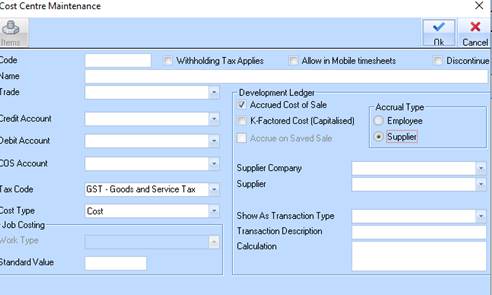
10. The Transaction Description field is used to enter the long hand description you want to be posted as the description of the invoice to the Accounts Payable ledger that will be posted to the selected Supplier’s account. In accordance with all cross ledger transactions this description will have the Co-Estate-Stage-Lot-Project-Improvement coding tacked to the end by the system i.e.100-1-4-15 etc. Enter a value and press Tab.
11. The Calculation field is used define the calculation you want the system to perform for you at the point of sale. For instance you may know that you get charged $400 for every sale for which your solicitor does the conveyance. In this simple case the calculation would be 400. You do not need to include Tax, because the system will automatically calculate the tax from the Tax Code selected in Cost Centre Details.
12. However by the use of some key words, these being: -
•IMP - the sale price of the improvement
•LOT - the sale price of the lot.
13. You can
come up with some very useful calculations. For instance if your Selling
Commission is say 2.5% of the total sale price then your calculation would be
((LOT+IMP)/100)*2.5
The normal rules of computer formulas apply
with
/ =
Divide
* =
Multiply
(
) = Standard
Brackets
+ =
Add
- =
Subtract.