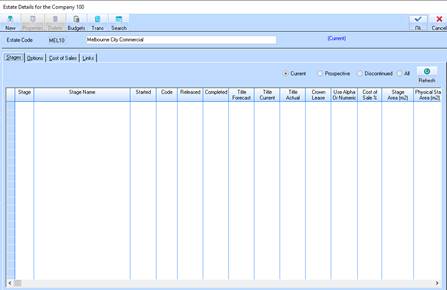
1. To create a New Stage, select the Estate Line Item that you would like to create the Stage for and press the Properties button. The following window will be displayed:
2. To create a new Stage, select the New button. The following window will be displayed:
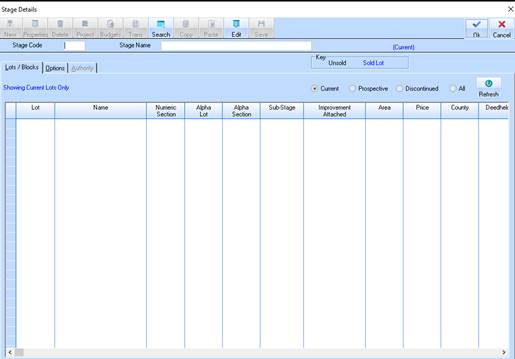
3. The Stage Code field is the key code that you will know your stage as. This code will appear in selection boxes, on reports and in display only fields whenever you are dealing with this stage. It can be up to 5 characters long and must be entered when creating a new stage. Enter a value and press the Tab key.
|
|
Once saved, the Stage Code value may not be changed. |
4. The Stage Name field is used to enter the long hand name by which you wish to know your stage. This name will appear on headings on reports and in selection boxes when choosing and dealing with this stage.
5. Enter a name and press the OK button. You will be returned to the refreshed Estate Details.
6. Select the Options tab. The following window will be displayed:
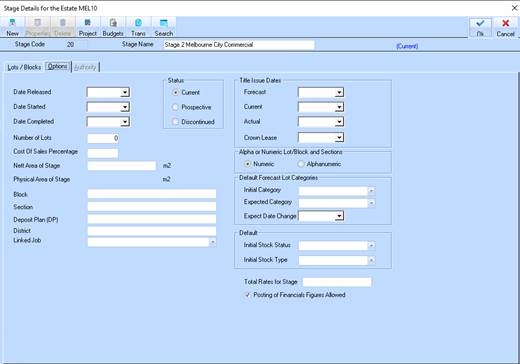
7. The Date Released pick list is used to input the date the stage is released. This field is used to capture information only but will appear on several reports and on the estate maintenance window. Leave the field blank and press the Tab key.
8. The Date Started pick list is used to input the date the work on the stage was started. This field is used to capture information only data field but will appear on several reports and on the estate maintenance window. Enter the current date and press the Tab key.
9. The Date Completed pick list is used to input the date the work on the stage was completed. This field is used to capture information only data field but will appear on several reports and on the estate maintenance window. Leave the field blank and press the Tab key.
10. The Number of Lots field is used to display the number of Lots created under the parent Stage record. This is calculated by the system and does not require input. Press the Tab key.
11. The Cost of Sales Percentage is used to display the Cost of Sales Percentage set for this stage. This is calculated by the system and does not require input. Press the Tab key.
12. The Nett Area of Stage field is used to display the total area of the estate in square metres. Leave the value blank and press the Tab key.
13. The Physical Area of Stage is used to display the total area of the lots within the stage.
14. The Block field is used to nominate the number of the parent Block for the stage. This is for information purposes and in word processing functions.
15. The Section field is used to input the Section Number of the parent Block for the stage. It is used for information purposes, reporting and word processing functions. It is not a mandatory field. Leave it blank and press the tab key.
16. The Deposit Plan is the Deposit Plan (or Registered Plan) of the parent Block for the stage. This is for information purposes and will be used in reports and word processing. You need not enter any information here when creating a new stage.
17. The District field is used to input the District in which the Lot resides. This is for information purposes and will be used in reports and word processing. You need not enter any information here when creating a new stage.
18. The Forecast field is the original date that you expect to get title for the stage.
19. The Current field is the current date that you expect to get title for the stage. This field is used for the Drop Dead report if a sales contract has a specified drop dead date that is greater than or equal to the current title issue date then it will be included in the report.
20. The Actual field is the date you actually got title for the stage.
21. The Crown Lease is the date which the Crown Lease is expected.
22. The Alpha or Numeric Lots/Blocks/Sections radio buttons instruct the system to validate input as either Alpha or Numeric. This has ramifications on how you will report and deal with lots in this stage.
•Alpha, signifies that as you create lots/blocks you will be using an Alpha Lot Code and Alpha Lot Section. If this option is set on, then as you create lots/blocks you will be asked to complete the alpha fields, your reports will come out in alpha order and your references will all be using these alpha codes. As the system actually only has a single number to identify each lot, the system generates a number starting at Zero and reducing for each new lot created in the stage i.e. –1, -2, -3 etc. The system will use this code to control transactions, sales etc. that need posting to the lot, but display to you your alpha codes.
•Numeric, simply applies the standard lot numbering rules. When this option is set the alpha lot and section data fields on Stock Details (See Procedure Manual Create Lot/Block) will be disabled.
