This interface is used to allow you define the names and addresses of your most commonly used purchaser’s solicitors. This will save you having to type the name and addresses for contract information on the sales contract and parameter windows.
1. Select a menu path of Maintenance Ø Purchasers’ Solicitors.
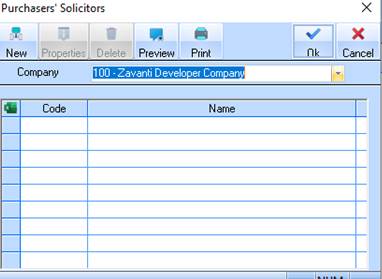
2. The following window will be displayed:
3. To create a record, select the New button. The following window will be displayed:
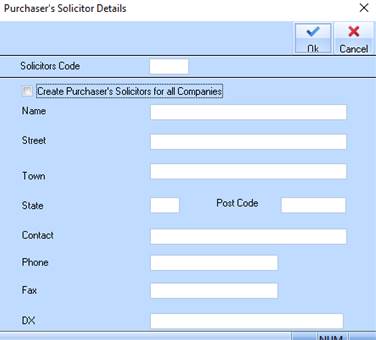
4. The Solicitors Code field is used to assign a unique code to the record. The code is alpha numeric and 5 characters in length. Enter a value and press the Tab key.
5. The Create Purchaser’s Solicitors for all Companies checkbox will create the record in all Companies. Leave this deselected and press the Tab key.
6. The Name field is used to input the Solicitor’s name. Enter a value and press the Tab key.
7. The Street field is used to input the Solicitor’s location. Enter a value and press the Tab key.
8. The Town field is used to input the Solicitor’s location. Enter a value and press the Tab key.
9. The State field is used to input the Solicitors location. Enter a value and press the Tab key.
10. The Post Code field is used to input the Purchaser Solicitor’s Post Code details. Enter a value and press the Tab key.
11. The Contact field is used to enter a contact name. Enter a value and press the Tab key.
12. The Phone field is used to record the Solicitor’s contact phone number. Enter a value and press the Tab key.
13. The Fax field is used to record the Solicitor’s contact fax number. Enter a value and press the Tab key.
14. The DX field is used to record the DX Number. Enter a value and press the Tab key.
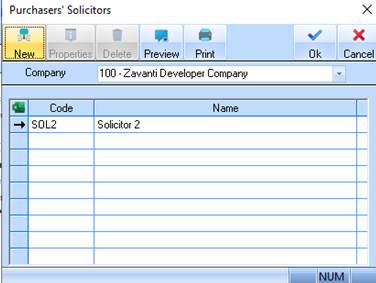
15. Now Press the OK button. The refreshed Purchaser’s Solicitors Listing window will be displayed as follows: