Power Writer utilizes Excels vast mathematical capability by allowing you to use formulas, and any valid Excel function in the Details area.
1. In the next example, we will add a Power Writer Formula to add up areas of the report. For our reporting purposes we want to add up the areas together:
2. Then at the end of the report, we want a Grand Total of all of these section totals.
3. Select the Preliminaries line item and click the Add Line button. Select the After Current Row option.
4. In the Header Text or Description field type a value of “Total”.
5. Position your cursor in the Indent Level field and type a value of “1”.
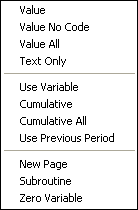
6. Position your cursor in the Action to Perform field and right click. The following menu will be displayed:
7. Select the Use Variable option.
8. Position your cursor in the Variable Name field and enter a meaningful variable name. In this example, please enter a value of “Tot1”.
9. Position your cursor in the Variable Expression field and right mouse click. The following window will be displayed:
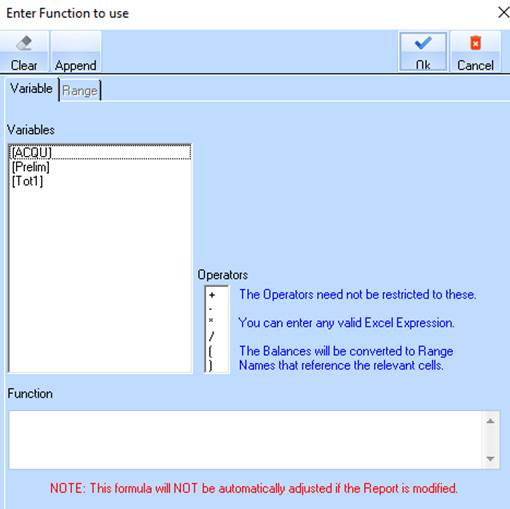
10. This window allows you to enter a formula into the Power Writer report.
|
|
Remember that any formula that can be used in Microsoft Excel may also be used within the Power Writer module. |
Formulas used in Power Writer take the form of:
•[Variable1] + [Variable2]
The variable names that we have given each detail row are used by Power Writer functions to refer to the value in that Distribution Code. Therefore, to add up the Preliminary costs and the Demolition costs, we would use the following formula:
•[PRELIM] + [DEMO]
There are two ways of entering this data into the Power Writer Details window. You can either use the Function dialog box, or type the formula in. When you begin entering formulas, it may be easier to use the Function dialog box, but as you become more confident with Power Writer, you may want to enter the formulas manually.
11. To select a Variable, double click the value. For the purposes of this exercise, double click on the PRELIM entry.
12. To select an Operator, double click the value. For the purposes of this exercise, double click on the plus sign (+).
13. To select the next variable, double click the value. For the purposes of this exercise, double click on the DEMO entry.
14. Press the OK button.
15. Now you can continue to create formulas for the other totals you would like to report on using the above steps.
