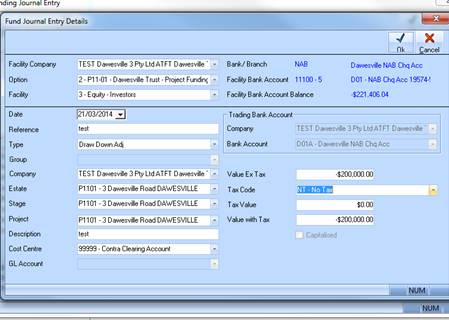
1. Pick Draw Down under type
2. Group – pick the Group this belongs too.
3. Make sure you pick the correct facility and bank account.
4. Click OK
5. Un tick Print
6. Click OK
7. This transaction is recorded as per below:
8. No impact on GL or DL – even though you pick a Cost Centre this doesn’t post anywhere therefore pick 99999 account.
9. Only impacts the draw down value and will be reflected in the forecasting module.
•Positive Amount – Takes off Draw Down from opening balance
•Negative Amount: Adds Draw Down to opening balance