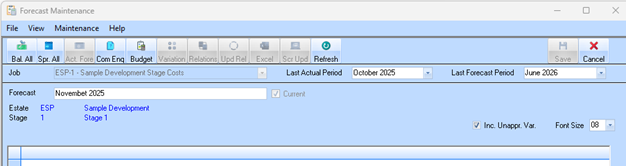
The Forecasting window
1. Menu Bar
At the top, you have standard menus:
•File – Options for opening, saving, or closing forecasts.
•View – Adjust the layout or visible columns.
•Maintenance – Actions to update or modify forecast data.
•Help – Access help documentation for guidance.
2. Toolbar
Below the menu bar, the toolbar contains shortcut buttons:
•Bal. All / Spr. All – Balance or spread values across periods.
•Act. Fore – Switch between actuals and forecast values.
•Com Eng / Budget – Enter committed engineering costs or budget data.
•Variation / Relations – View variations or relationships between line items.
•UpdRel / Excel / ScrUpd – Update relationships, export to Excel, or update the screen.
•Refresh – Reload the data in the window.
•Save / Cancel – Save changes or cancel edits.
3. Job Details Section
•Shows Job Details for Selected Forecast
•Last Actual Period – Displays the last period for which actuals are available.
•Last Forecast Period – Displays the end period of the current forecast.
4. Forecast and Linked Development Details
Estate / Stage – Shows the estate and stage related to the selected job.
5. Main Grid
The large blank area is where forecast data is displayed.
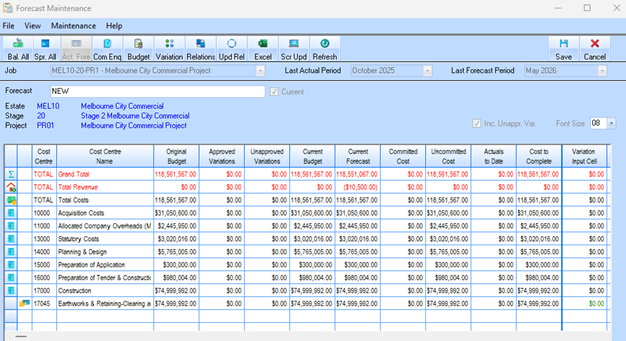
You can view and maintain costs, revenue, or other forecast items by line, period, or category.
The Inc. Unappr. Var checkbox allows you to include unapplied variations in the view.
Font Size – Adjusts the text size for easier viewing.
|
|
This window is essentially the central place for maintaining forecasts, allowing you to select a job, pick a forecast version, and enter or review the detailed numbers, while the toolbar and menus provide shortcuts for common forecasting operations
|
