
Note the user requires prior knowledge of the Job Costing module, and functionality surrounding the setting up of a job and cost centre Budgets. Should you require assistance, please contact your training representative.
This section explains the functionality of the Forecasting module, which supports the 'Total Cost to Complete' scenario commonly used by commercial builders. This results in forecast values displayed in Job Performance Analysis reports
|
|
Note the user requires prior knowledge of the Job Costing module, and functionality surrounding the setting up of a job and cost centre Budgets. Should you require assistance, please contact your training representative. |
After the job is created, proceed to set up the original job budget, ensuring all relevant costs and revenue budgets are accurately recorded at cost centre level. Also enter any Variations that you wish to maintain separate to the original budget. These are reported separately in the Forecast
1. Create a new Forecast or maintain an existing Forecast using the instructions in this manual.
2. Set Last Actual period to expected ‘end of job’ period
3. Set Last Forecast to any period after ‘Last actual period’
4. Click Refresh
5. Press BAL. All and select Yes to the prompt
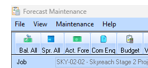
7. Once the cost centre has been found, double click to bring up the Maintaining Forecast window
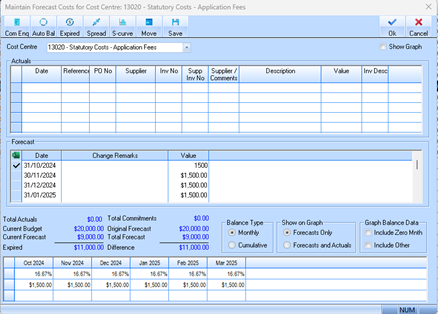
8. In the Forecast section of the window, note the date of the forecast, change remarks and value.
9. The Date should be at expected end of project
10. Change Remarks can be entered (i.e. April07 Forecast)
11. Value should be the expected “Total Cost to complete value” for the cost centre
12. Repeat from step 6 until all cost centres desired to be forecasted has been complete.
13. Save the forecast
|
|
The Total Cost to complete on the Job Performance
analysis, Job summary reports, and the Job Summary window will now reflect
the value maintained here. You can also use a Power Writer to produce a
report to show the “Total Cost To Complete” value at cost centre level or
at total job |
