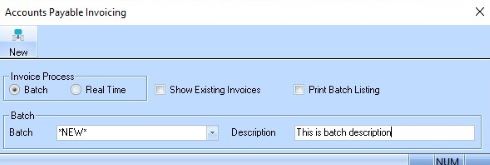
1. Select the Invoice button from the Toolbar. The following dialogue box will be displayed:
2. Select the Batch radio button for the Invoice Process field. The Batch Description field defaults to “Invoice Batch”. To ensure that it is unique and meaningful, amend the Description with additional text.
3. Press the New button. The standard Invoice window will be displayed. Enter details of the Invoice using the instructions found in the Invoice Transaction section of the user guide and press the OK button.
4. You can also review or amend existing batches
5. Select the Batch
created in the last walkthrough from the Batch to Work in the pick list.
Select the Show Existing Invoices  checkbox. The dialogue box will
change as follows:
checkbox. The dialogue box will
change as follows:
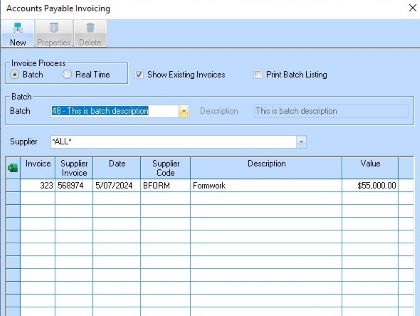
6. To amend an invoice within the batch, select the line item that requires changing and press the Properties button. The following window will be displayed:
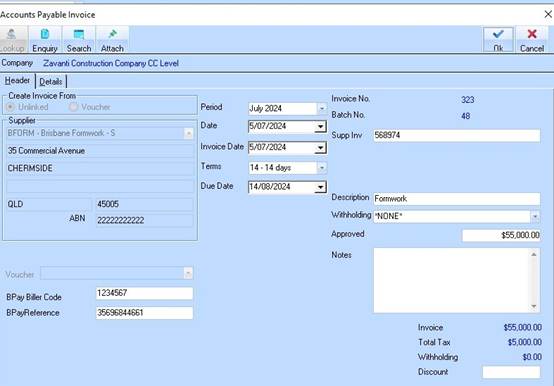
7. You may now amend any details of the invoice. To return to process the batch, select the OK button.