The Invoice function allows users to record details of invoices that require payment for overhead non-job related expenses.
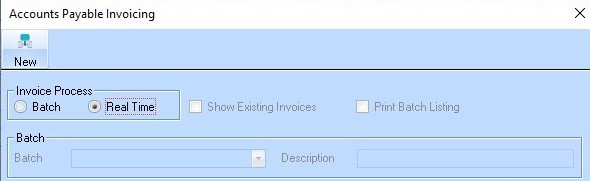
1. Select the Invoice button from the Toolbar or the following Menu Path Transactions Ø Invoice. The following dialogue box will be displayed:
2. There are two options available – Real Time and Batch. Real Time means that the invoices are processed immediately. The Batch option should be used for invoice processing to be done at a specific time.
3. Make sure that the Invoice Process is set to Real Time and press the button.
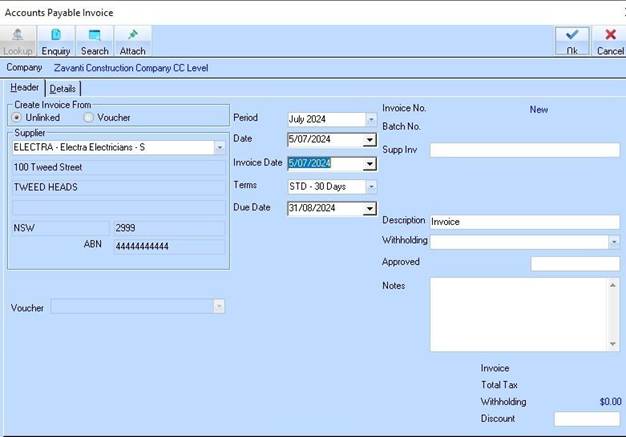
4. Select a company name from the Supplier drop down box. The other fields will then be populated with that supplier’s data. BPay details will be displayed if Supplier is ticked ‘BPay’
5. The Due Date will be automatically populated based upon the Supplier details created when setting up the Supplier. This can be manually overridden by selecting the Term box and altering the terms, or by manually selecting the Due Date field and selecting a date from the pop up calendar.
6. Supplier Inv No (Supplier Invoice Number) field. Enter a character value into the field and press the Tab key.
7. You can attach a link to a document such as the scanned invoice using the attach function from the top menu bar.
8. Click the Details tab. The following display will appear:
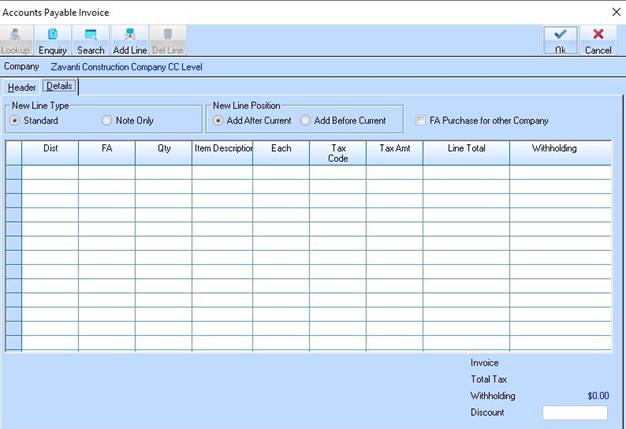
9. Leave the New Line Type and New Line Position as the defaulted selection of Standard and Add after Current respectively.
10. Click the Add Line button.
11. Click in the G/L Account column on the first line and press the Lookup button. The following dialogue box will be displayed:
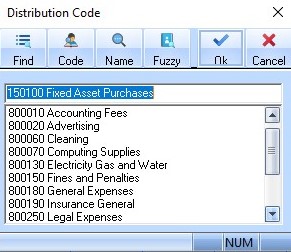
12. Select a value from the list and press the OK button. The first line will be updated with the selected code. :
|
|
You will note that based on your selection the system will default entries in the Qty (Quantity) Item Description and Tax Code fields. |
13. Position your cursor in the each field. Enter a value and press the Tab key.
14. Note that the system calculates the Tax Amt based on the Tax Code.
15. For GST free items, a Tax Code of G14 may be specified and the system will set the Tax Amount to zero.
16. Press the OK button. The Supplier Lookup window will be displayed to allow the user to continue processing invoices.
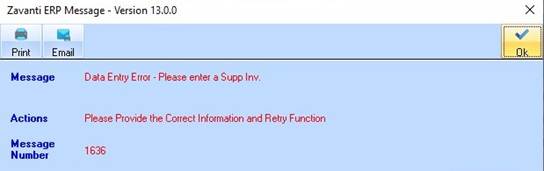
17. The software has been enhanced to restrict users from processing invoices in the Accounts Payable module without Supplier Invoice Numbers. If the field is left blank, users will encounter an error message and will be unable to proceed without entering the appropriate information into the field.
18. The system will generate and allocate an Invoice Number upon successful save.
