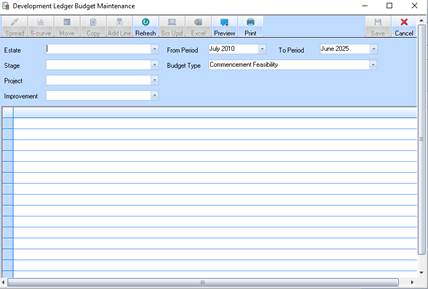
The Development Ledger allows you to keep budgets against each estate and stage (in the case of improvements this is against each estate, stage, project and improvement.
1. Select a menu path of Maintenance Ø Budgets.
2. The following window will be displayed:
3.
Select a value from the Estate pick list by pressing the dropdown
arrow . Press Tab.
4.
Select a value from the Stage pick list by pressing the dropdown arrow .
Press Tab.
5. Set the From Period and To Period fields to be one financial year.
6.
Select a Budget Type from the list by pressing the dropdown arrow .
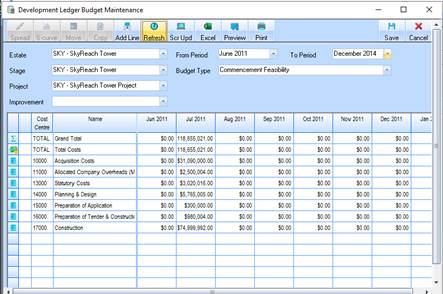
7. Now select the Refresh button. The window will be refreshed and displayed as follows:
8.
To be able to see a graphical representation of the budget figures, you will
need to “drill down” to a child line item where budget has been allocated. This
is denoted in the window by a dollar figure  icon. To display
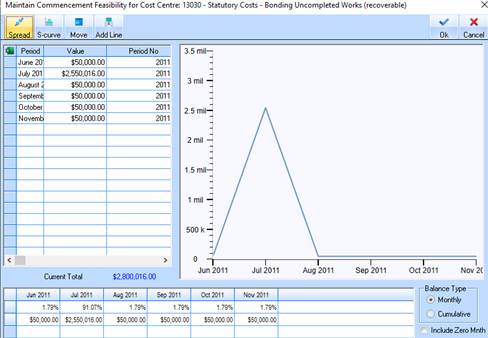
the report pictorially, double click on the line item with the dollar figure
icon. The following window will be displayed:
icon. To display
the report pictorially, double click on the line item with the dollar figure
icon. The following window will be displayed:
9.
This window allows you to display your data graphically. There are many options
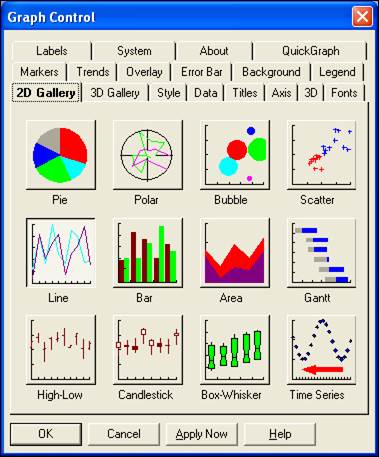
within this window to change how your data is displayed. Select the 2D Gallery
 from the Graph Toolbar. The following
window will be displayed:
from the Graph Toolbar. The following
window will be displayed:
|
|
Speak to your training consultant about how to maximise the Graphics functionality to best meet your business requirements. |
