Module: Development Ledger
The creation and maintenance of the Purchase details on the Sale record for each Lot/Improvement can be done when as soon as the Purchaser is determined or at the ‘Process Sale’ stage. The Sale price and/or Purchaser information maintained in the CRM will automatically be updated in the Sale maintenance windows and Purchaser details when integrated.
1. Select the required Sale record from the ‘Maintain sales’ window and click properties.
2. Click on the ‘Contract’ option button
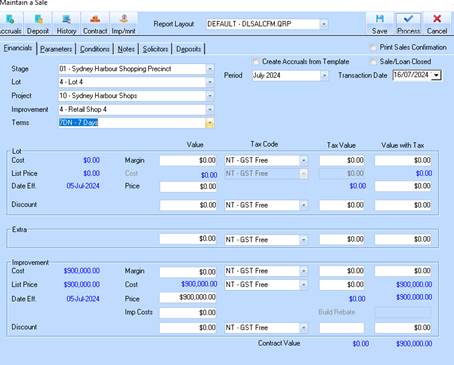
3. The following window will appear prompting the user to enter the new Purchaser details, or maintain the existing Purchase details, or change to a different Purchaser.
4. The details maintained here will be used to create the Client (debtor) in the Accounts receivable module when the Sale is processed. (see: Processing a Sale)
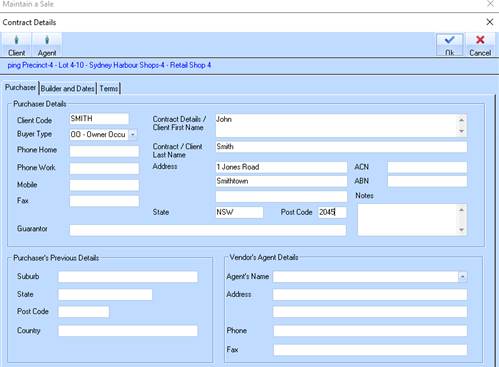
5. The following fields are mandatory and must be entered prior to clicking ok, and subsequently processing the sale
•Client Code – Enter a code if a new Client is to be created or select an existing client by clicking the Client option. When selecting an existing client, then all other fields are automatically set.
•Buyer type
•Client First Name
•Client Last name
•Address details, State and Postcode
6. Other fields on the Contract details screen are for reference only and can be maintained if the Zavanti CRM is not used.
7. Click ‘OK’ to save the details entered here. You can maintain these details as required, up to the point of ‘Processing the Sale’.
8. Click in the ‘Parameters’ TAB of the ‘Maintain a Sale’ window to enter other mandatory fields required prior to processing a sale
•Sales Person
•Contract Date
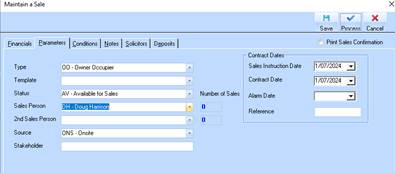
9. Click ‘SAVE’ on the ‘Maintain a Sale’ window to save the details entered here. This will save all information recorded but not "process" the sale as yet. The Sales confirmation report is printed if the ‘Print Sales Confirmation’ check box is ticked
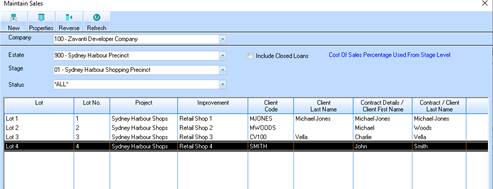
10. If the Contract (Purchaser) details have been entered on the ‘Contract Details’ TAB, the name will appear in the ‘Maintain Sales’ window shown here