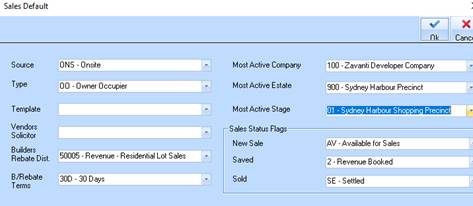
This allows you to define a set of defaults for sales input and maintenance, which saves you from having to repetitively enter common information. Most fields can be amended from within the Sales Input for sales that do not meet the default criteria.
The Sales Defaults options allow you to define flags and options that are to be used by default when creating new sales and also some defaults for Accounts Payable invoices.
1. Select a menu path of Maintenance Ø Sales Ø Sales Defaults.
2. The following window will be displayed:
3.
The Source pick list is used to select the most commonly used source. Select a
value from the list by pressing the dropdown arrow . Press Tab.
4.
The Type pick list is used to select the most commonly used Type as the default.
Select a value from the list by pressing the dropdown arrow.
Press Tab.
5. The Template pick list is used to select the most commonly used Template. Leave the selection blank and press Tab.
6. The Vendor’s Solicitor’s pick list is used to select the most commonly used record. Leave the selection blank and press Tab.
7. The Builders Rebate Dist. (Cost Centre) field is used to set the value that you want to use within the sales process. Select a value from the list and press Tab.
8. The B/Rebate Terms field is used to set the default payment terms for the sales process. Select a value from the list and press Tab.
9. The Most Active Estate/Company/Stage pick lists are used to set defaults for these values. Whenever you enter a processing window with these fields, the system will automatically set the fields to the values you nominate here.
10. The Sales Status Flags instruct the system to set statuses on your behalf at certain stages within the process. The system will used the values specified here to build rules for example IF New Sale THEN set Status to “SI - Sales Instruction Received”.
11. To save your preferred Defaults, press the OK button.