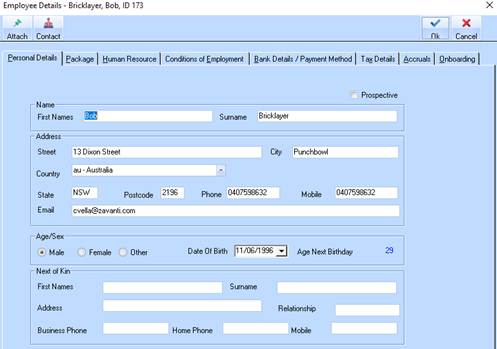
To create a new Employee Member
1. Click on New.
2. Complete the Personal Details - enter the personal details for the employee. The Employee ID number can be entered manually, or the system will generate a number if left blank.
3. Note that these details include the employees email address to allow emailing of payslips.
|
|
You will also need to ensure that the ERP user processing payroll has their current email address set up in User maintenance. This is used to email a summary at the end of the payroll process to advise the number of emails sent or rejected. |
4. You will notice that there are two buttons at the top of the entry screen. Attach and Contact.
•Attach will allow you to link any external documents such as employment contract to the employee record. A path is entered to the document which can be Word files, Excel files etc
•Contact will allow the user to Export and Link the employee to the Contacts module if it is installed. When any future amendments are made to the Employee record the system will ask if you wish to export the changes to Contacts.
5. The Name and address fields cannot contain comma’s or similar characters. The ATO will reject the file in these circumstances.
6. State fields are required to be CAPS, max 3 characters. NSW, VIC, QLD, TAS, SA, WA, NT, ACT
7. The ‘Phone’ number data is passed to the Single Touch Payroll file, do not leave this blank, if no landline phone number exists copy and paste the mobile number into the ‘Phone’ data field.
8. The employee ‘Date of Birth’ data is passed to the Single Touch Payroll file.
Explanation of Fields - Personal Details
|
Field Name |
Description |
|
Employee Id |
Assign the employee record a unique identifier. If you would like the system to generate the value for you, leave the field blank and press Tab. |
|
Prospective |
This checkbox is used to indicate whether the employee is being considered for employment but is not yet a member of the organisation. You would leave the checkbox deselected if the employee has been engaged. |
|
First Name and Surname |
Input the employee’s full name. |
|
Address box |
Input the employee’s home address details. |
|
|
Input the employees email address for sending documents |
|
Age/Sex box |
Enter information regarding the employee’s gender and age. Select the appropriate radio button |
|
Date of Birth |
This pick list allows you to select the person’s birth date. Note that it is probably easier to enter the date manually. |
|
Age Next Birthday |
This field is a system calculated field that is generated based on your input into the Date of Birth field. |
|
Next of Kin box |
Allows you to capture information regarding the person that the employee has nominated for you to contact in the case of emergency. |
