If automatic posting of journals is not selected, you must post the General Journal into the General Ledger
1. Ensure the General Ledger is open
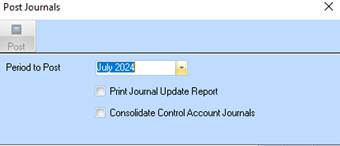
2. Click on the Post Jn button, the following screen will open.
3. If the user wants to review unposted journals before posting they will need to run Journal listing from the report’s menu, or review at unposted journals from the Journal entry function.
4. Ensure the Company and Period details are correct, and check the Print Journal Update report (if desired) and Consolidate Control Account Journals (if desired)
5. Click on Post. If the Post button is greyed out, check the bottom of the dialog box, there may be a message indicated that there are no un-posted journals.
6. If you have selected to print the Journal Update report, select the appropriate printer and press OK.
7. A message will appear informing you that the journals have been successfully processed, and asks you if you wish to save the changes, click Yes When Posting the journals, if there is an exception, the unposted journal list report will print.
8. Close the Post Journals dialog box
9. Close the General Ledger