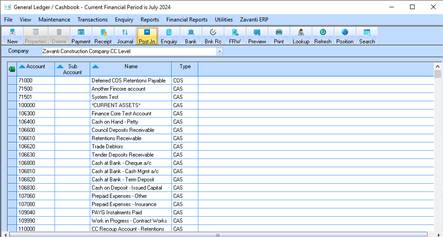
1. The system will now display the Post Journals Window where you are now required to specify the time period you wish to post. This will only be necessary if Auto Post is NOT set
2. Deselect the Check Box Consolidate Control Account Journals.
3. Click the Print Journal Update Report button (if required) to update the journal and press ‘Post’
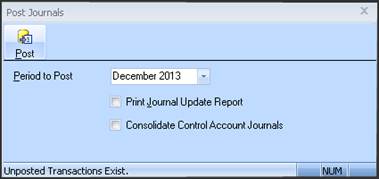
4. The System will now display the following Update Journal Window. Click on the cross to close down the Journal Update Window.
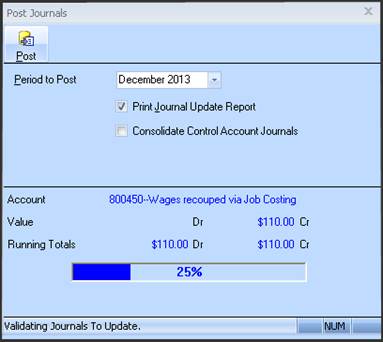
5. To create a System Trial Balance click on Reports in the drop down menu from the main General Ledger window and click on System Trial Balance.
6. Click the Print pushbutton to print the System Trial Balance.
7. Put this report to the side and note the value in the WIP control account, as this will need to balance with the next steps from Job Costing.

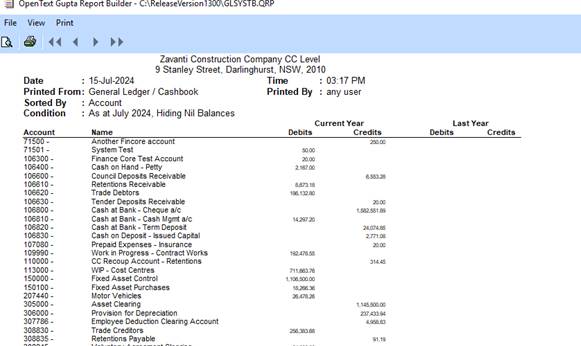
8. Load up the Job Costing Module
9. Select Reports > Job Balance Report > Summary Reports > Job Balance
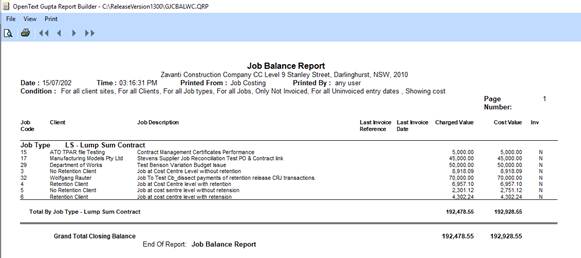
10. You will now be displayed the Job Balance Report Window. Set Show Costs in the tick box. Complete the window.
11. Click the Print pushbutton to print the Job Balance Report.
12. The printed Job Balance Report will be as at the last day of a month in the period updated. The Grand Total on the bottom of the Job Balance Report must balance to the WIP control account on the System Trial Balance.
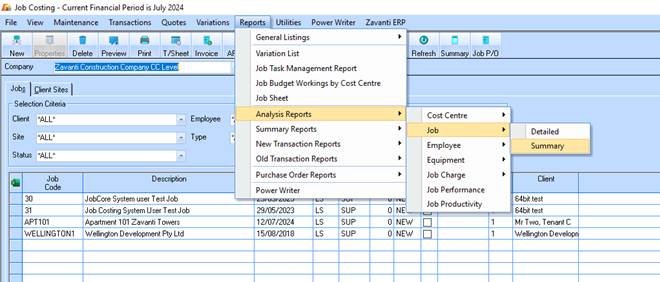
13. To create a Job Analysis Summary Report click on Reports in the drop down menu from the main Job Costing window. Go to Analysis Reports, then to Job, followed by Summary.
14. Reports > Analysis Reports > Jobs > Summary
15. The system will now display the Job Analysis Window.
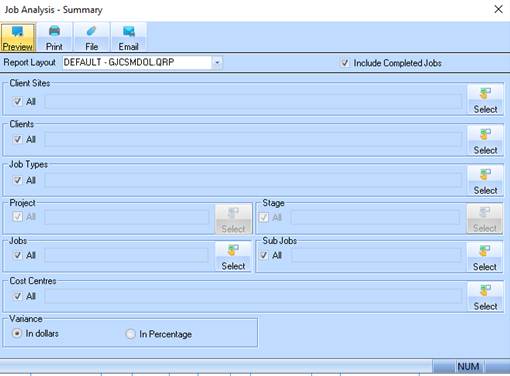
16. Click the Print pushbutton to print the Job Balance Report.
17. The Grand Total on the bottom of the Job Analysis Report must balance to the Work in Progress Account on the System Trial Balance Report and the Job Balance Report.