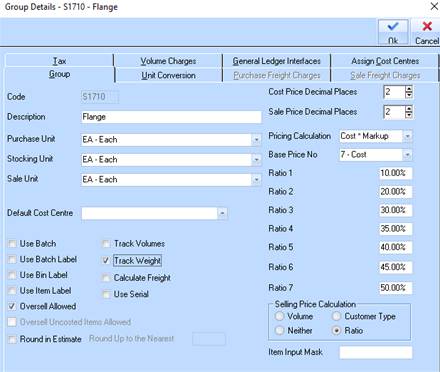
1. In the group maintenance window select ‘COST PLUS MARKUP’ and ‘RATIO’ as shown here for those groups which items you wish to apply this markup calculation
2. To apply a % to a Stock Sale is to set the Item Group to Cost + Markup.
3. Enter the required MARKUP % (Ratio 1-7) that are then able to be selected at the SALES ORDER / STOCK REQUISITION in order to calculate the Selling price
4. For this stock group the Pricing Calculation has been set to Cost + Mark-up and then you can see the various percentages in the Ratio Boxes.
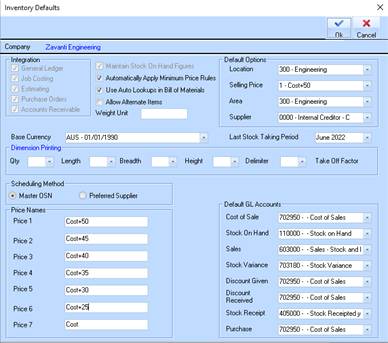
5. In the Inventory defaults the name Prices as Cost+??% to demonstrate the category but they could call them Retail, Wholesale etc.
Now if you maintain the Item Type details in Inventory you can set the Client Type to a specific Cost+ Category (Sale).
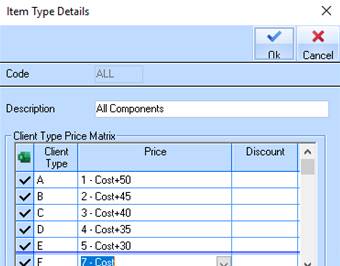
6. It is necessary to plan how the Item types are set up if the % Charges are not across all Stock.
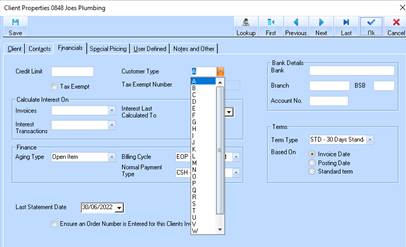
7. In Accounts Receivable each Client would be assigned the Customer Types Category
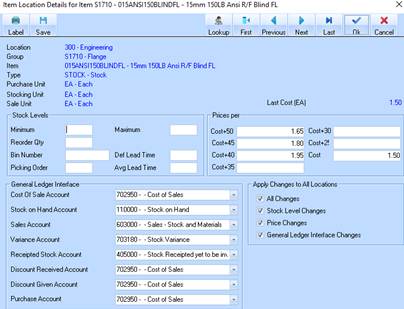
8. In Inventory I have run a Client Price Recalc and the selling prices are displayed when you drill down to the Location of the individual item.
9. For this Sales Order I have selected a Client with Group A Pricing and this is reflected as the Selling Price on the Sales Order
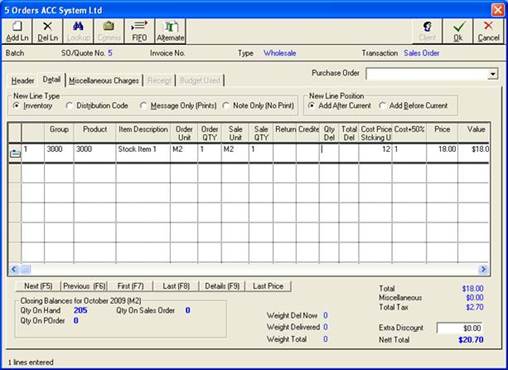
10. So on the Sales Order above it shows the Cost of $12.00 and the Sales Value of $18.00 as per the calculation
11. So this works fine for Sales Orders – but Stock Requisitions do not pull the pricing based on Customer Type.
12. The Sales Levels are displayed and the user would need to select which Selling Price to use.