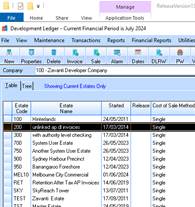
In the Development Ledger module
1. From the main window click ‘New’ to create a new Estate
2. From the Estate window, click on NEW to create a new Stage for that Estate, enter the Stage details.
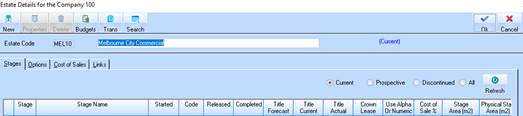
3. Create the STAGE in the required ESTATE, by clicking on the properties of that selected ESTATE and clicking NEW. Enter the STAGE CODE and NAME
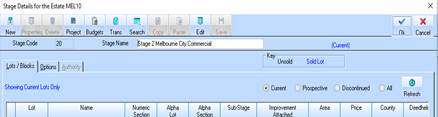
4. Note: You can create multiple Stages in an existing Estate if required.
5. If this a LAND Only stage, then go to the OPTIONS TAB on the Stage Maintenance and select the JOB created in Step 1, from the LINKED JOB selection and set the ‘Posting of Financial Figures Allowed’ check box
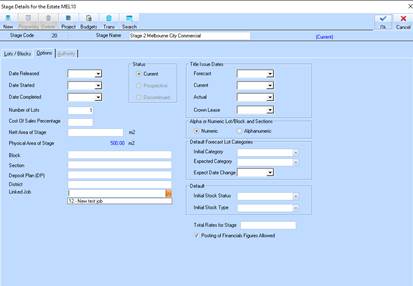
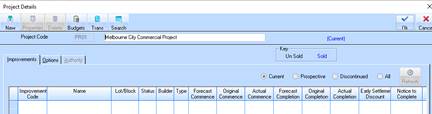
6. If we maintaining stock, from the Stage maintenance window, click on PROJECT button to create a new Project for the Stage. Set the ‘Posting of financials figures allows’ on the options TAB
7. If we are NOT creating stock, from the Stage maintenance windows et the ‘Posting of financials figures allows’ on the options TAB. (do not do step 5 and 6)
8. From the Stage Details window, click NEW to create the LOTS within the Stage
9. From the Project maintenance window, click on NEW to create the ‘Improvements’ for that Project. Link the LOT to the Improvement
|
Note |
Use meaningful Estate/Stage/Project codes to make it easier to recognise the project you are working in. E.g. Estate: LEONA Stage: STG12 |