
The next process will be to set up the Standing Journal Batches.
1. Select Maintenance/Standing Journals/Batches
2. Click on New

3. Enter a unique Batch Code and Name.
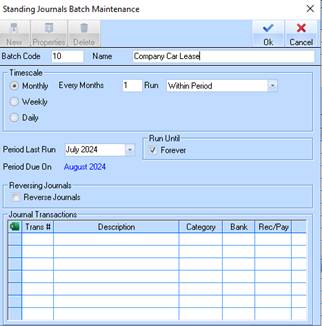
4. Select Timescale – ie frequency of journal
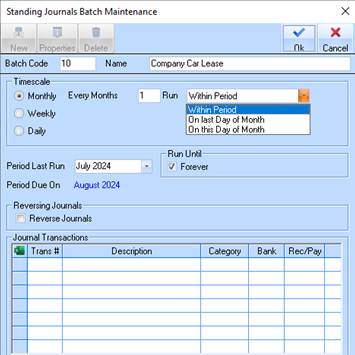
5. Select a Run option using the drop down
6. Select a Period Last Run – this needs to be prior to when the process will commence.
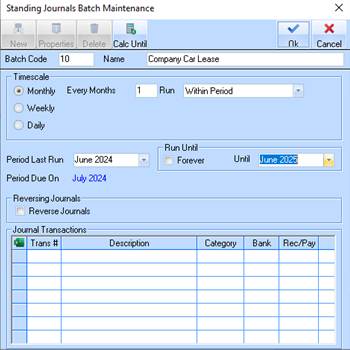
7. There is an option to select when the Standing Journal process will end or no specified end date
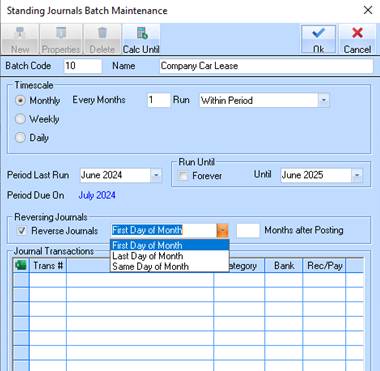
8. If the Standing Journal being created is for Accruals there is also an option available for Reversing Journals.
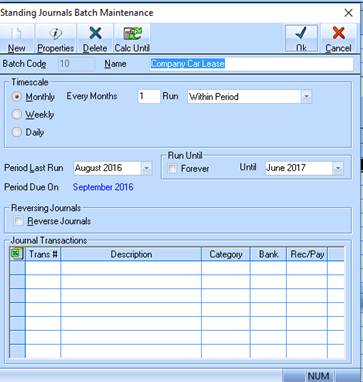
9. Click on OK after required options have been selected.
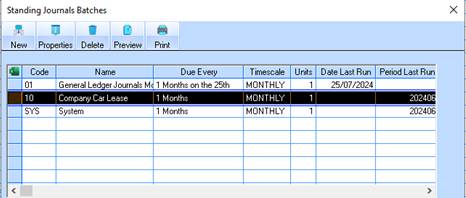
10. The Standing Journal Batch is displayed in the table window.
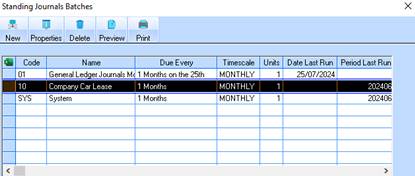
11. To set the parameters highlight the batch and click on Properties
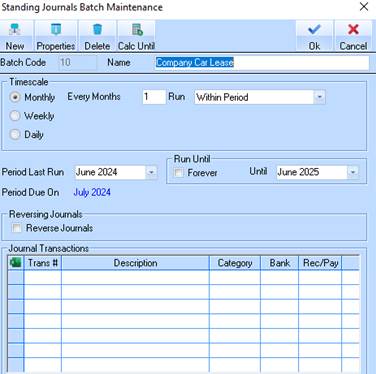
12. Click on the New button
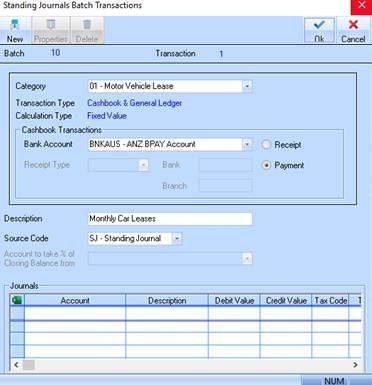
13. The Standing Journal Batch Transactions window is displayed.
14. Select the Category and Bank Account using the drop down arrow
15. Select Cashbook Transaction Type (Payment or Receipt)
16. Enter a description and select source code. It is preferential that you have a unique source code for Standing Journals so they can be selected by type for reporting on the General Ledger Listing. If a unique code does not exist, right click on the field and select New. Enter the details, and then press OK to save the code. It can be maintained later via the Maintenance window in General Ledger.
17. Click on the New button
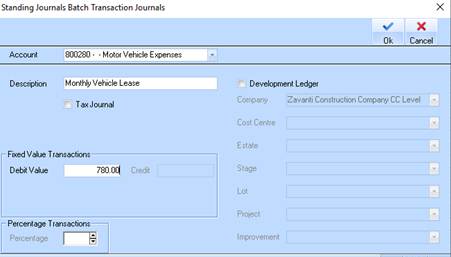
18. Select the General Ledger account for this transaction
19. Enter a description and enter a value.
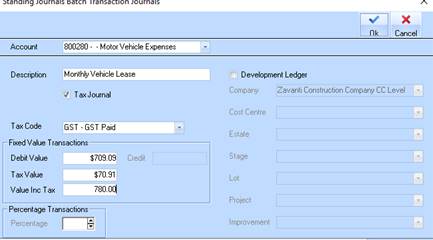
20. If this transaction needs to show GST tick the Tax Journal box and select a Tax code.
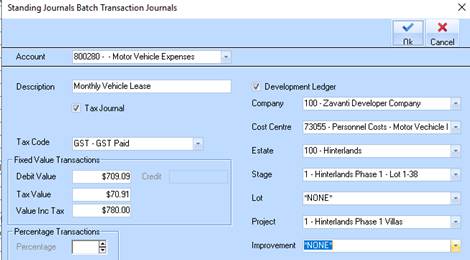
21. If this transaction (Cost) needs to be associated to the Development Ledger check the box and select the Estate/Stage/Project/Cost Centre combination
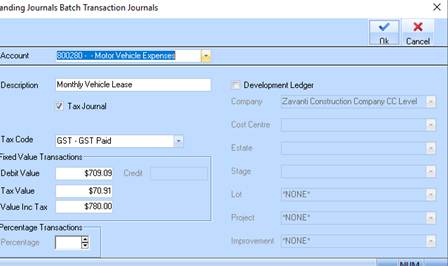
22. Click on OK when all selections have been made.
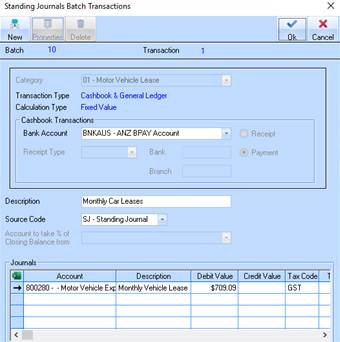
23. The completed transaction will display in the table window
24. Click on OK
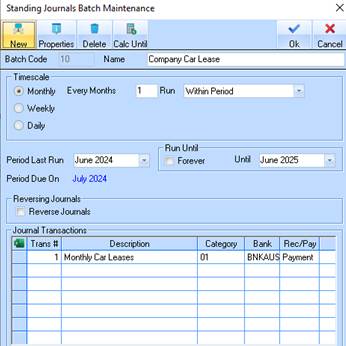
25. The Transaction will appear in the window for that batch.
26. The user is able to click on New to add similar payments to the same batch or can click on OK to complete the process.