It is possible to enter a single cost at completion to update project forecasts.
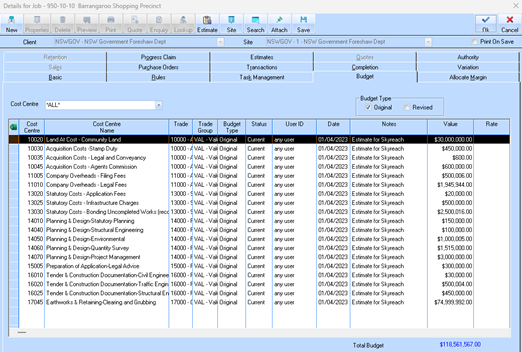
1. Job has been created and budget entered (via manual entry or estimating).
2. Go into Forecasting Module and highlight job
3. Click on FORECAST button to bring up the job forecast maintenance window
4. Select an ‘Last Actual’ month that is as at the end of project (or beyond)
5. Click REFRESH button
6. Select into and provide the forecast a name in the Forecast box
7. Tick the CURRENT check box
8. Click the SPR. ALL button at top of forecast maintenance screen (and click on yes to confirm)
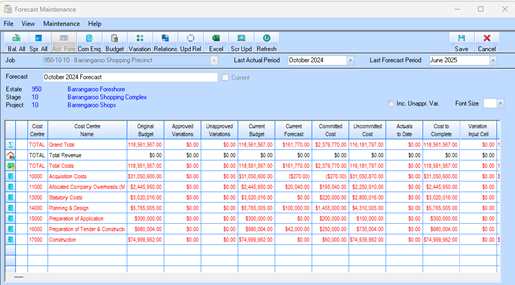
9. Once done, all Cost Centres will have a forecast date based on ‘last actual’ period (end of project) and forecast value based on ‘budget’ value.
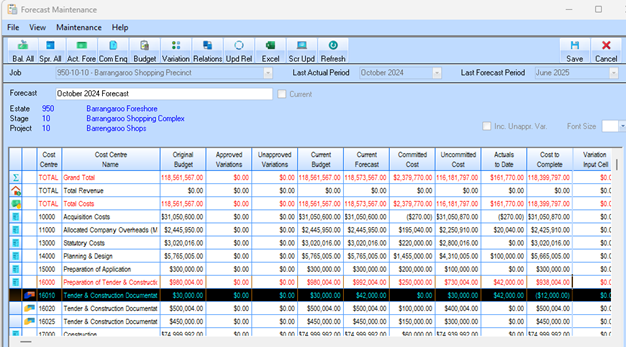
10. Click SAVE button to save forecast as is.
11. Once saved, project managers will double click onto each Cost Centre as required and adjust the forecasted value to their expected cost at completion.
|
|
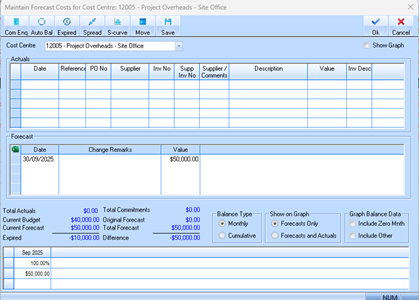
Example Cost Centre has a budget value of $40000 but we re-project the cost at completion for scaffolding to be at $50,000 and have updated the forecast value accordingly.
|
12. Click OK to save this projection and continue to do same to each of the other Cost Centres where required.
•At completion of adjusting each of the required Cost Centres, SAVE
•At prompt where ‘Budget does not equal total’, click YES to continue the save
13. Run forecasting as required to update the forecasted ‘Cost at Completion’ value from step 4 (steps 1 to 3 are only required to be carried out once)
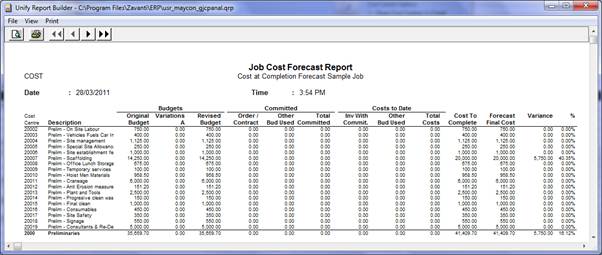
14. In Job Costing, now if you run the Job Performance Analysis Report you will find now that variance (over/under run) against each Cost Centre is now displayed along with a variance %.