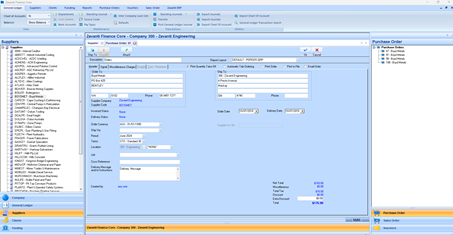
When you choose one of the functions on the right-hand side, a list of all Purchase Orders, Sales Orders, or Vouchers for the selected entity appears. You can filter down this list by selecting a specific Supplier to filter the Purchase Orders or Vouchers, or by selecting a client to filter the Sales Orders.
You can click on a particular Purchase Order or Sales order which will then be displayed in the central TAB window to allow you to maintain your details, or access the other functionality related to that transaction.
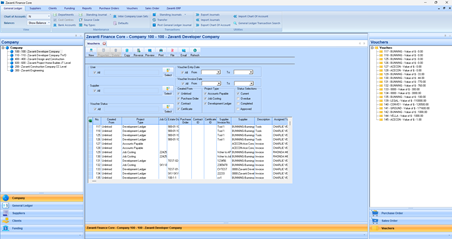
By selecting the Vouchers option from the right-hand menu, you can select the required individual Voucher to modify, or click on the Voucher heading in the right-hand tree to bring up the Vouchers main form in the central Tab window.
From there you can further filter your Vouchers by status, user, date project etc with access to all the Voucher functions found on the buttons on the top of the central TAB
The Finance Core allows you to have multiple central tab windows open at any one time. For example, if we select a Supplier, we can view the Voucher, Purchase Order details for that selected supplier on separate tabs as shown below
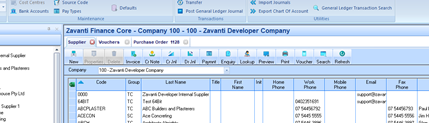
This capability makes it easier for the user to view data without having to close and re-open different module(s). Simply switch between tabs as required or open a new tab with another selected entry. You can close any tab window not required by clicking the ‘x’ on each tab
All Tab windows are automatically closed, if you select a different company, as you can only select data from one company at any one time.
The Finance Core has a ribbon bar menu as shown, which includes all the functionality of the individual modules. Each tab allows the user to access the functionality grouped by the ‘module’ specific tasks. It also has additional ‘filter’ options specific to that function

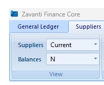
For example: if we select ‘Suppliers’

We can use the two ‘view’ options shown here that will filter the supplier list shown in the left-hand tree menu when we have selected the Suppliers option.
Other functions such as Maintenance, Transactions and Utilities in this example, are grouped accordingly. Some of the functions also have ‘sub-menus’ available from the drop-down options as shown here.
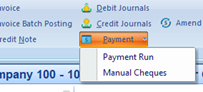
This makes navigation to your required function easier and all from one central advanced menu system.