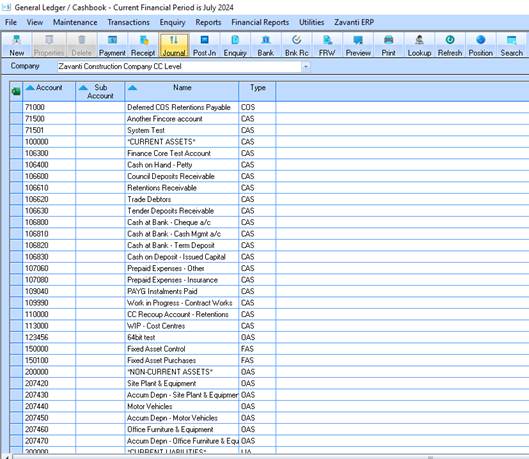
If you are posting journals in the General Ledger and you get an error message on the journal printout, Journal entries must be corrected before you can attempt to repost.
The following instructions will assist in amending Journal entries.
1. Click on the Journal button to view the entries for the relevant month.
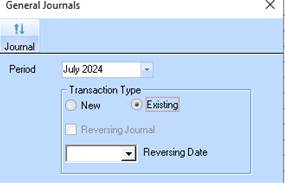
2. Select the relevant period and click on 'Existing' to view the current entries. Click on the Journal button in the top left corner to view the details.
3. The details appear as below:
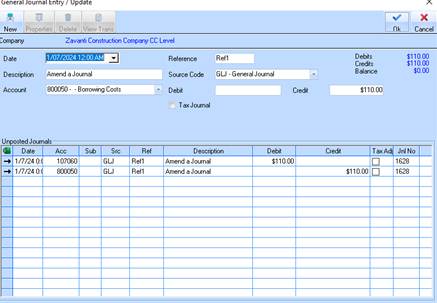
4. Your 'posting report' should be able to help you find the line item that will not post.
5. Note the 'Balance' figures in Blue on the top right side of the screen. The Balance must be zero. If it is not zero you will need to find the line items (DR’s and CR’s making up one journal entry) that do not balance. When you have determined which line you want to change, follow Step 2 Correcting a Line Item.
6. Another common error involves a missing or incorrect General Ledger Account.
7. Your posting report may indicate the problem entry and you will need to correct the General Ledger Account.
STEP 2 Correcting a Line Item
8. Use the Right Mouse Click on the incorrect line item, and then select Properties
9. Click OK on the following message. Note the ACCEPT button on the Journal screen Top LHS.
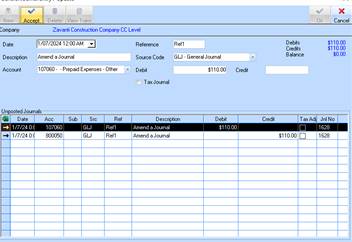
10. Notice that the details relating to your highlighted line are available for correction in the cells at the top header portion of your journal screen.
11. At this stage you can adjust the $ amount, or perhaps re-select the General Ledger Account to correct your journal line item.
12. When you have completed your changes for this line item, you must click on the 'ACCEPT' button.
13. When you are happy that all your entries are correct and the Balance is Zero, click on the 'OK' button to complete the process
14. RETRY your Post Journal process.
15. If you find that your error related to a General Ledger account, you should determine which Sub Module generated the transactions, 'Accounts Payable' or 'Accounts Receivable'.
16. Go to the appropriate Sub Module and go to Maintenance > Distribution Codes and reselect the GL account on the relevant Distribution code, otherwise this code will continue to generate invalid journals